Call reporting for Microsoft Teams Calling
VoIP Detective is able to pull call records from Microsoft and store them locally. This allows you to store as much data as your organization requires, on premise, and allow users to access this data without having to grant Microsoft permissions.
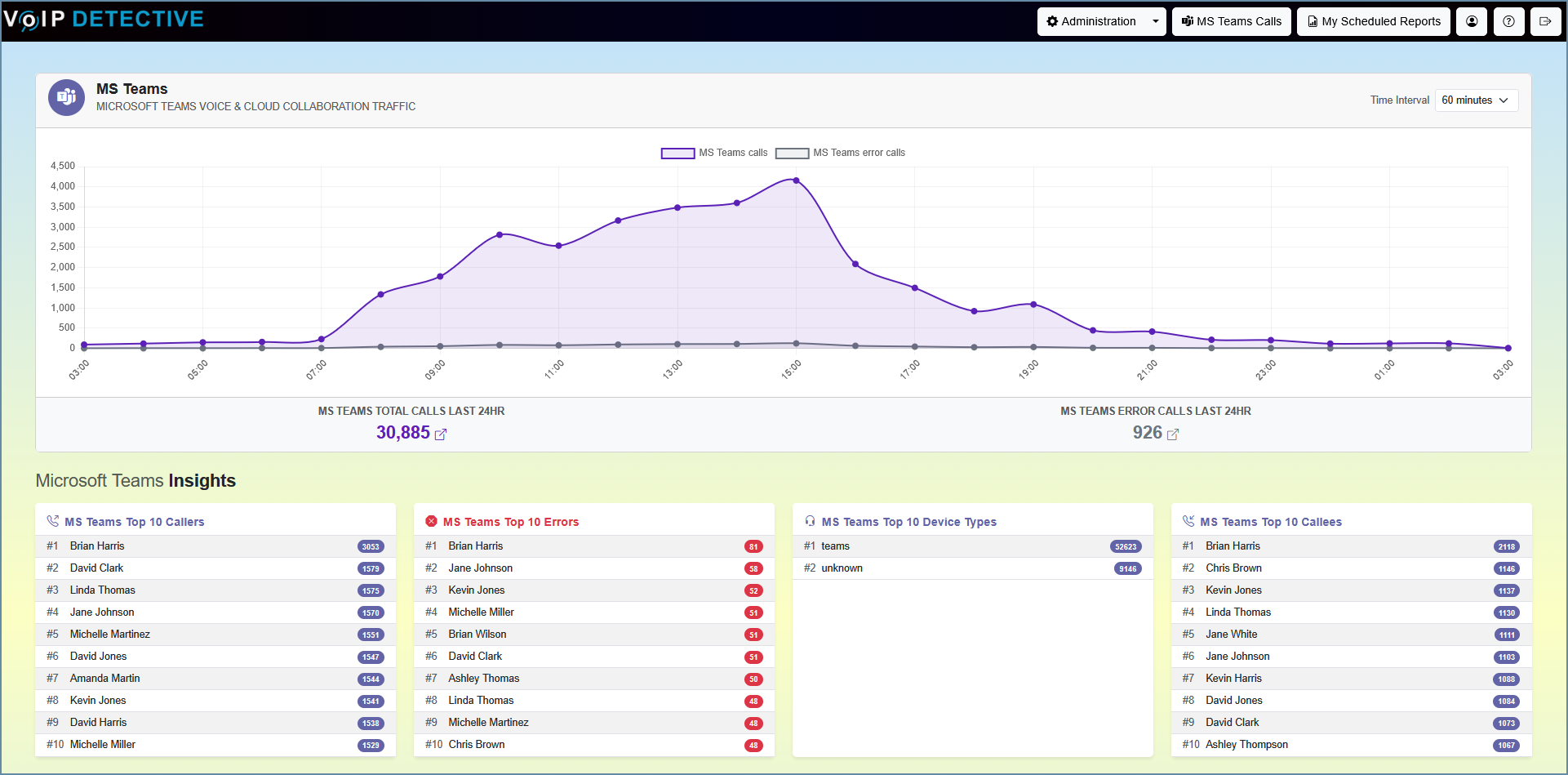
High level overview of setting up VoIP Detective Microsoft Teams Calling:
- Install the VoIP Detective virtual machine in your environment.
- Create an application in the Azure Portal
- Give this application the proper permissions
- Choose an authentication method (certificate or secret).
- Configure Microsoft Teams Call Reporting in VoIP Detective.
Installing the VoIP Detective virtual machine.
You can download the VoIP Detective VM, and find guides specific to your hypervisor on this page:
https://www.voipdetective.com/releases/
Set Up Access to Microsoft Graph
Register an Application in Azure AD:
Go to the Azure portal.
Navigate to Azure Active Directory > App registrations.
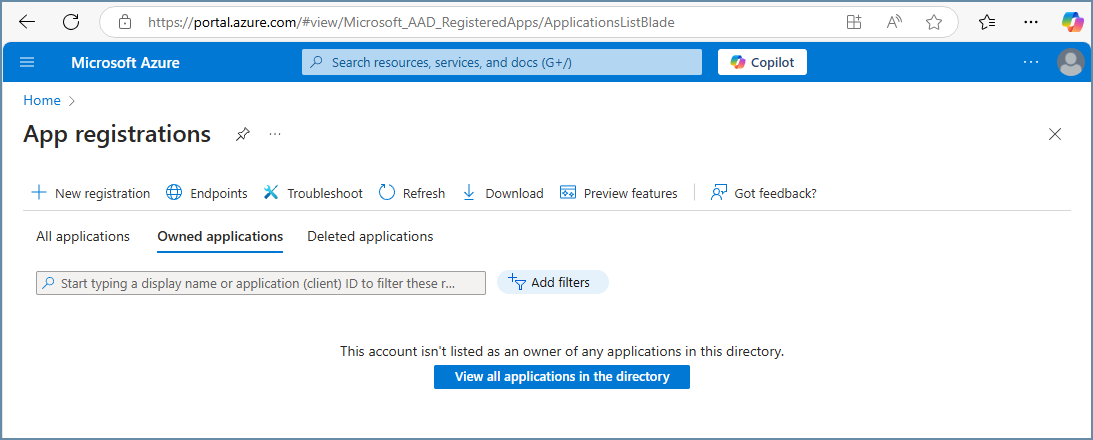
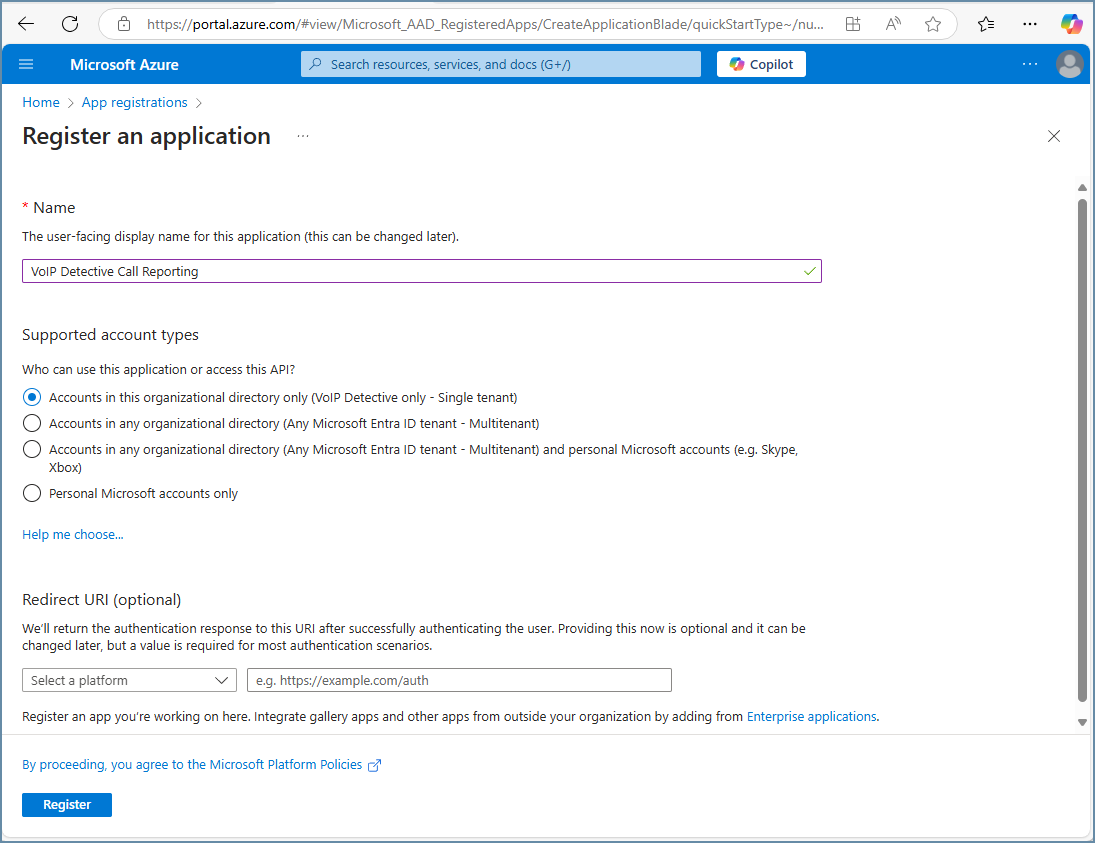
Click New registration and create an application.
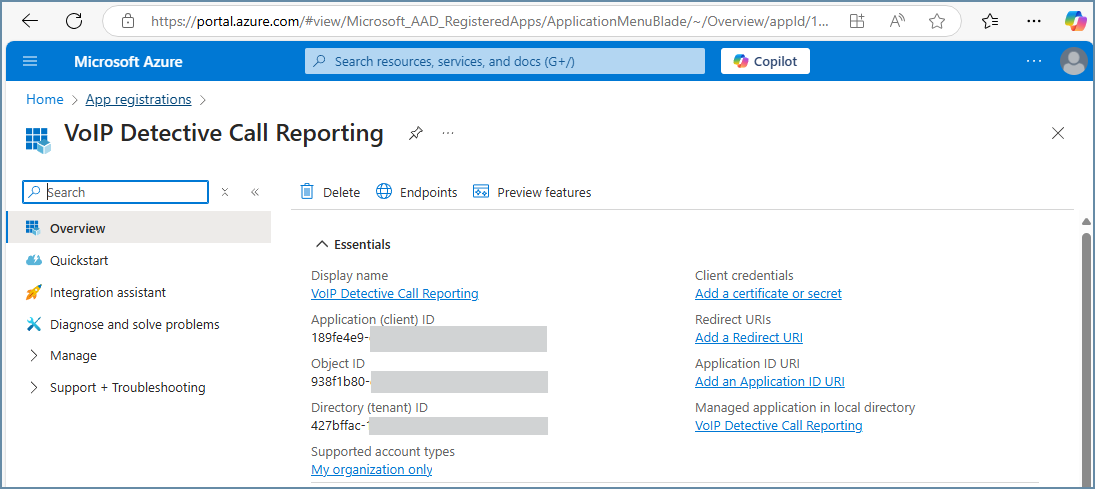
Note the Application (client) ID and Directory (tenant) ID.
Assign API Permissions:
Under the app's settings, go to API permissions.
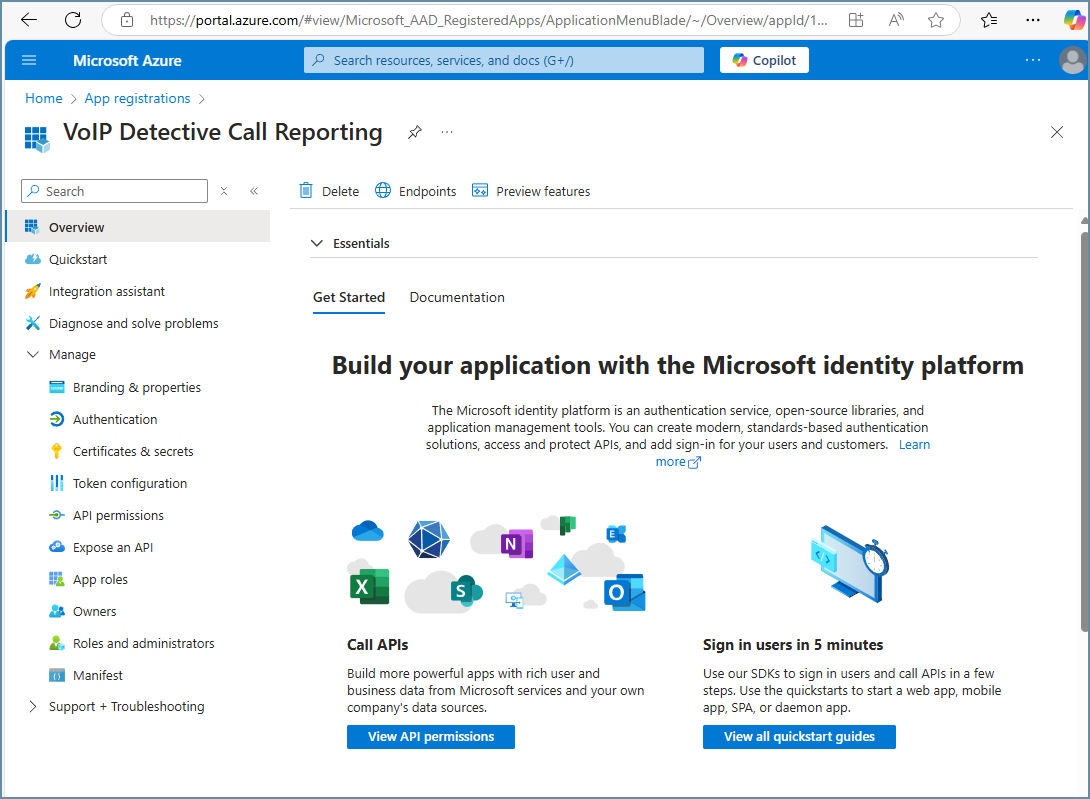
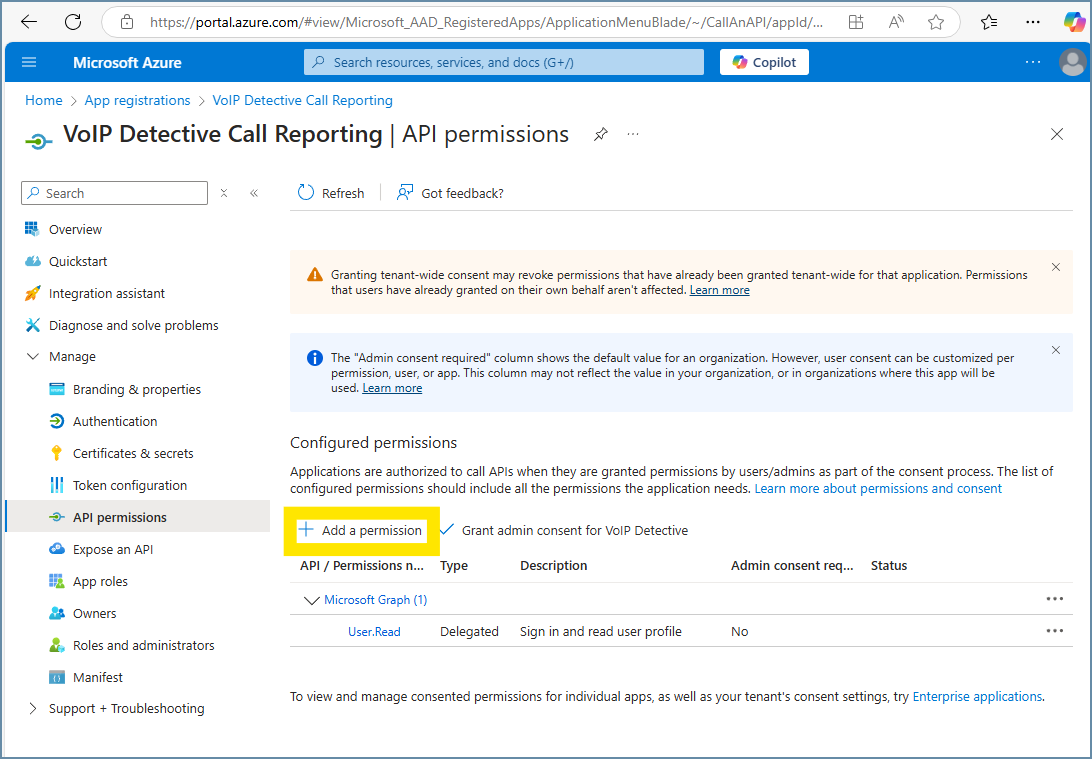
Add the Microsoft Graph API permissions:
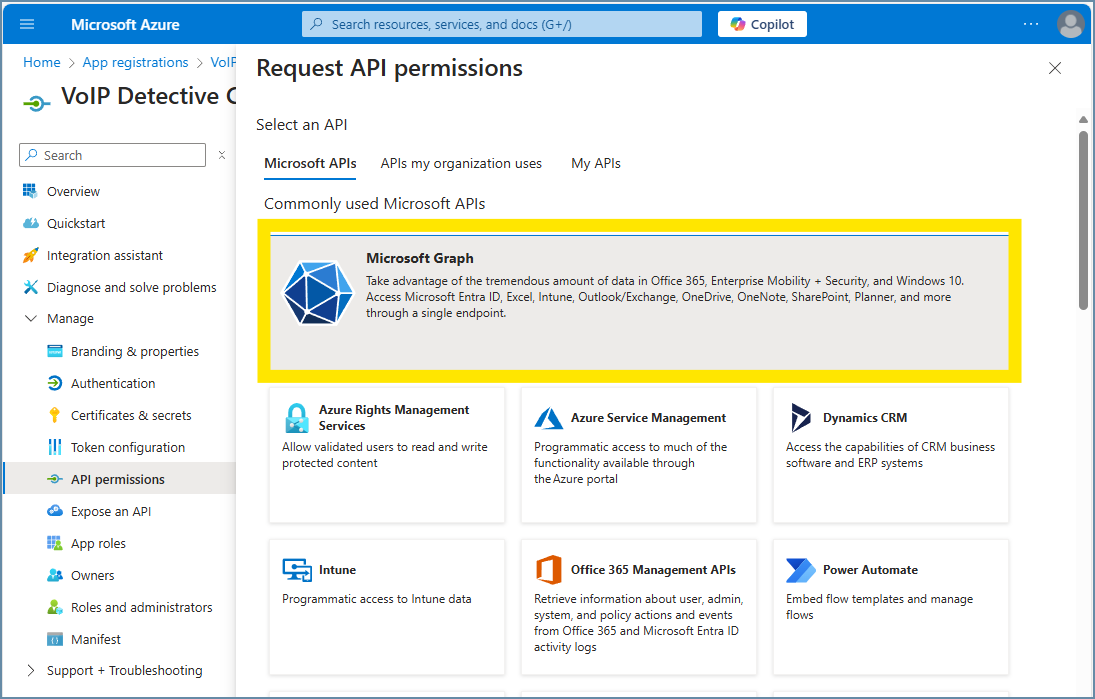
Choose "application permissions"
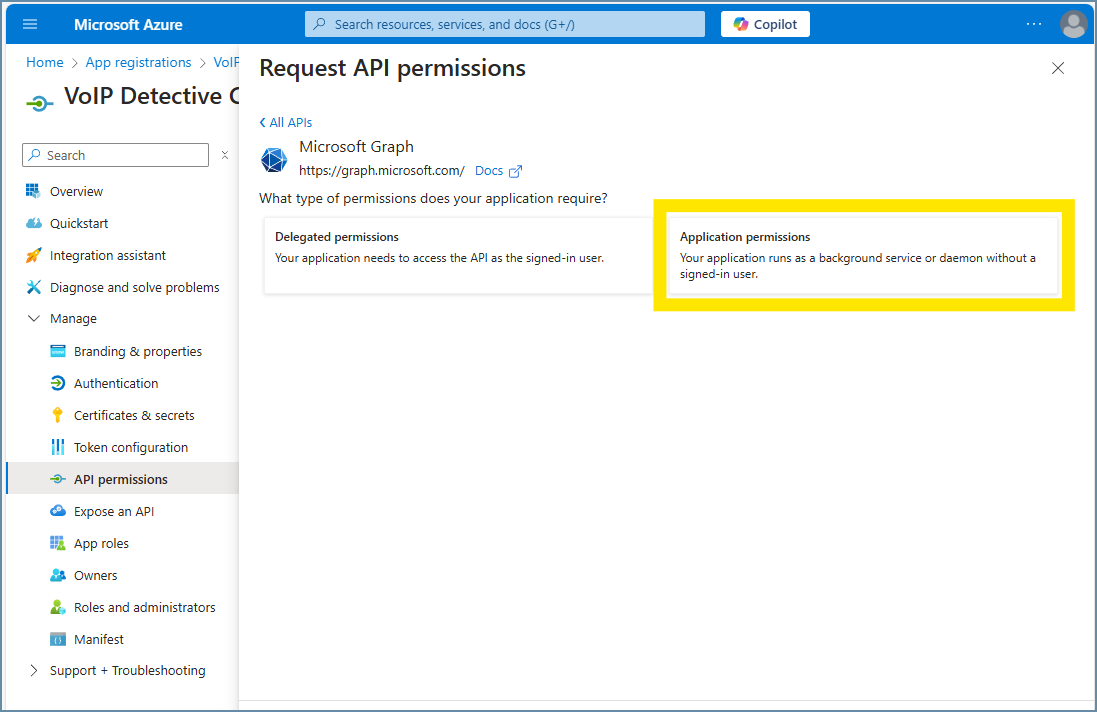
You'll be given a search box where we can search for permissions.
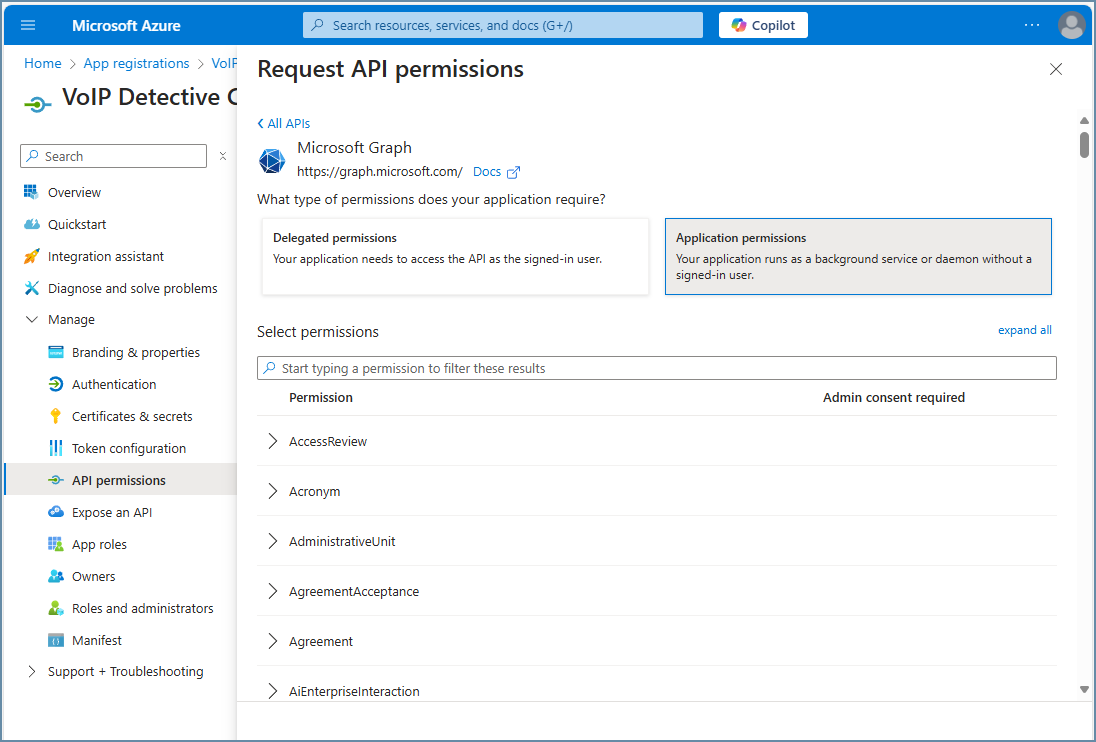
Enter "callrecord" into the search box. You should get two results - place a checkmark next to each and save.
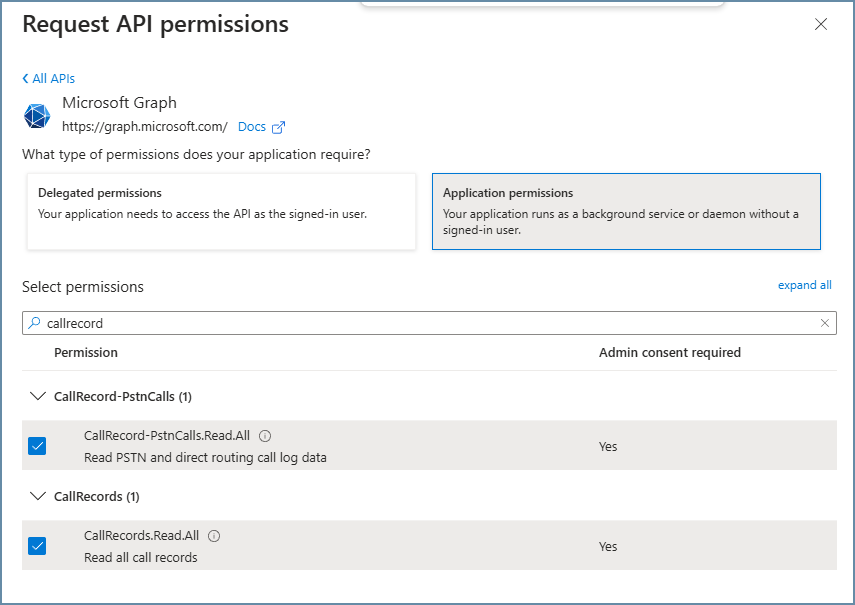
So that we can read your users, we'll also need the User.Read.All permission
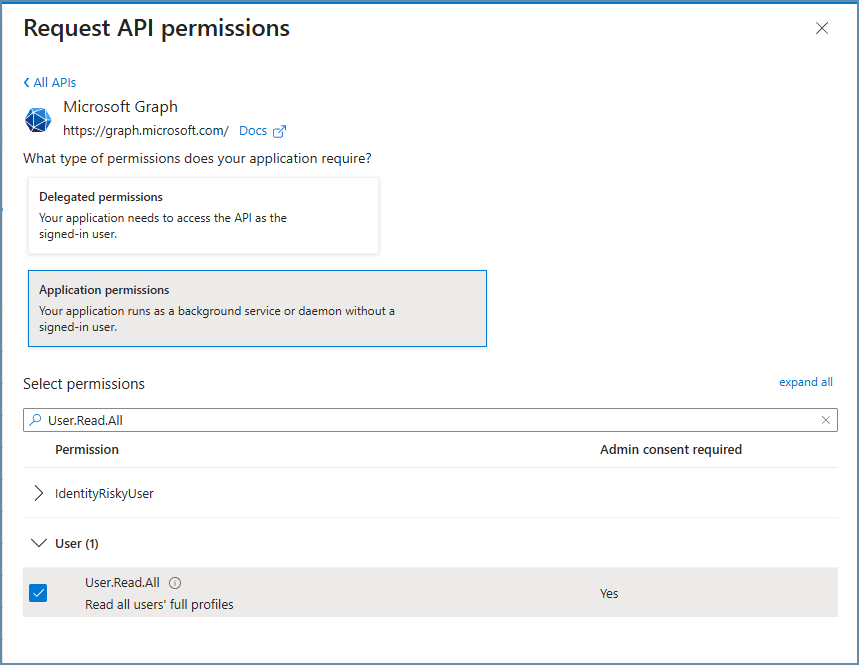
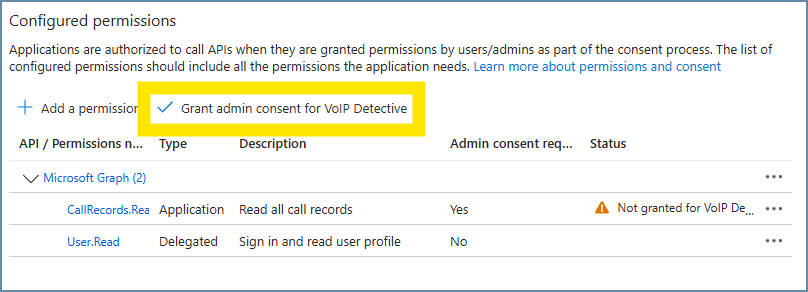
You should now see these permissions added
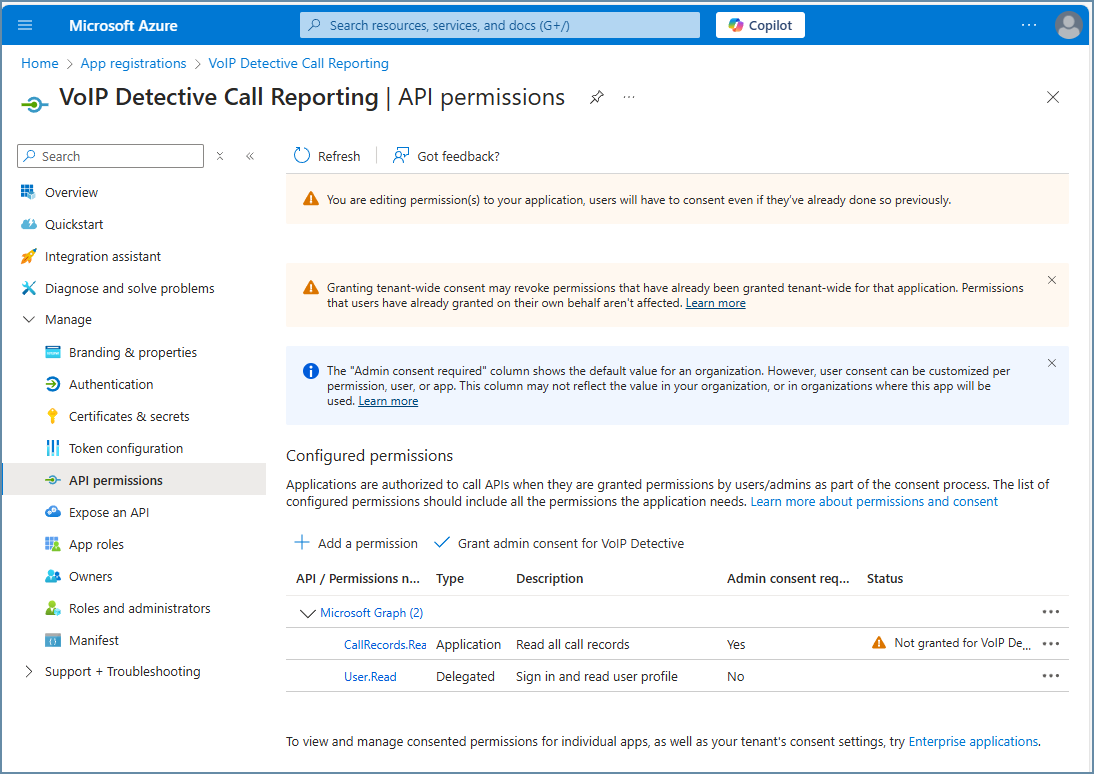
Choose the button to Grant admin consent for VoIP Detective
Choose Yes to grant permissions
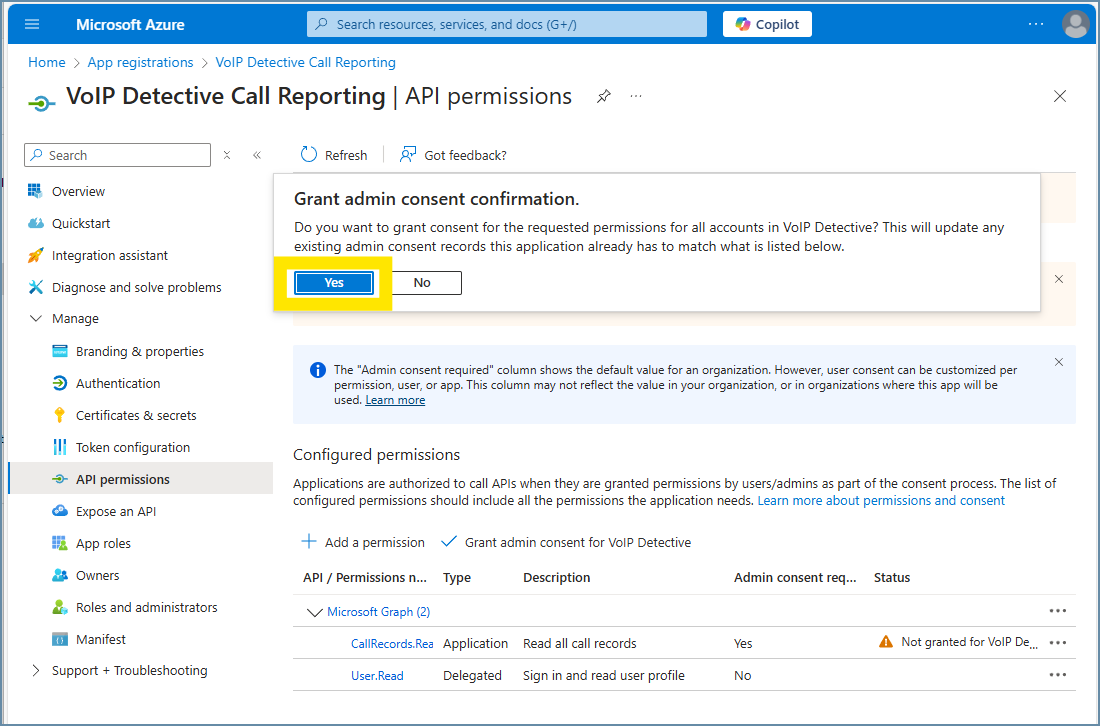
Grant admin consent for these permissions.

Enabling Microsoft Teams Call Reporting in VoIP Detective.
Go to Administration -> Configuration and scroll down to the MS Teams Call Reporting section and Enable MS Teams call reporting.
You will then need to go to Administration -> Configuration from the menu, in order to reload the page.
Enter Your Tenant ID, Application ID, choose a proper Data Retention timeframe, and pick an authentication model (more on this below).
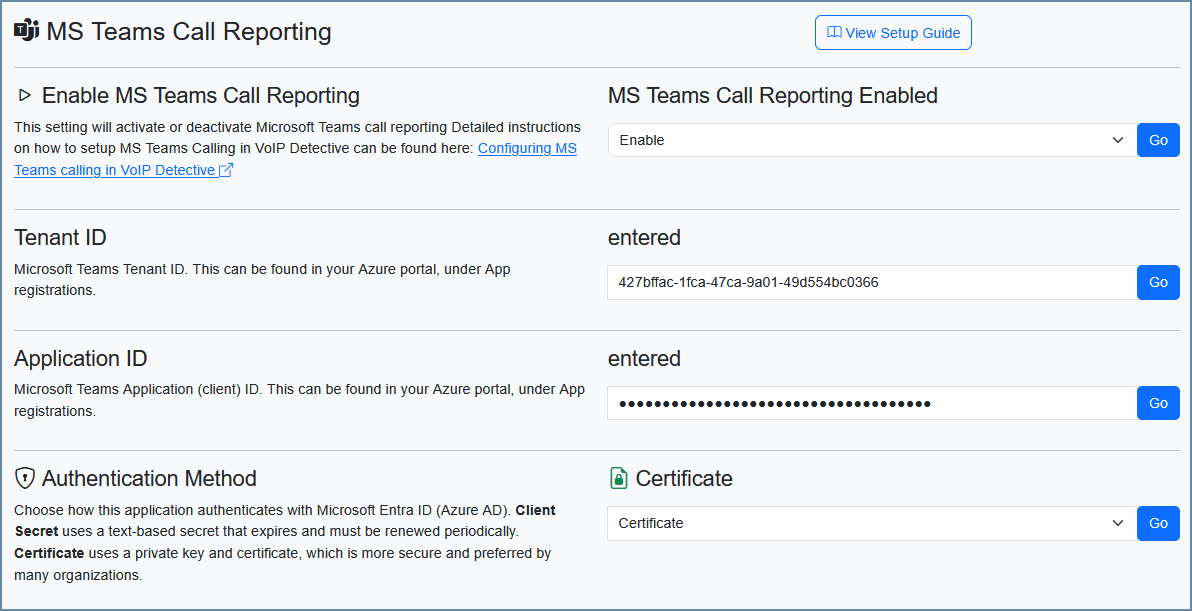
Choose an Authentication Method
VoIP Detective supports two methods of authenticating with Microsoft. You only need to complete one of the following options:
Option A: Certificate (Recommended)
Certificate authentication is more secure and does not expire like client secrets do. VoIP Detective can generate the certificate for you automatically.
In VoIP Detective:
1. Go to Administration → Configuration → MS Teams Call Reporting.
2. Set the Authentication Method to Certificate.
3. Click "Generate certificate & download". This will:
- Create a private key and save it securely on the VoIP Detective server
- Fill in the certificate thumbprint automatically
- Download a `.crt` file to your computer
In the Azure Portal:
4. Go back to your App registration in Azure.
5. Navigate to Certificates & secrets → Certificates tab.
6. Click Upload certificate.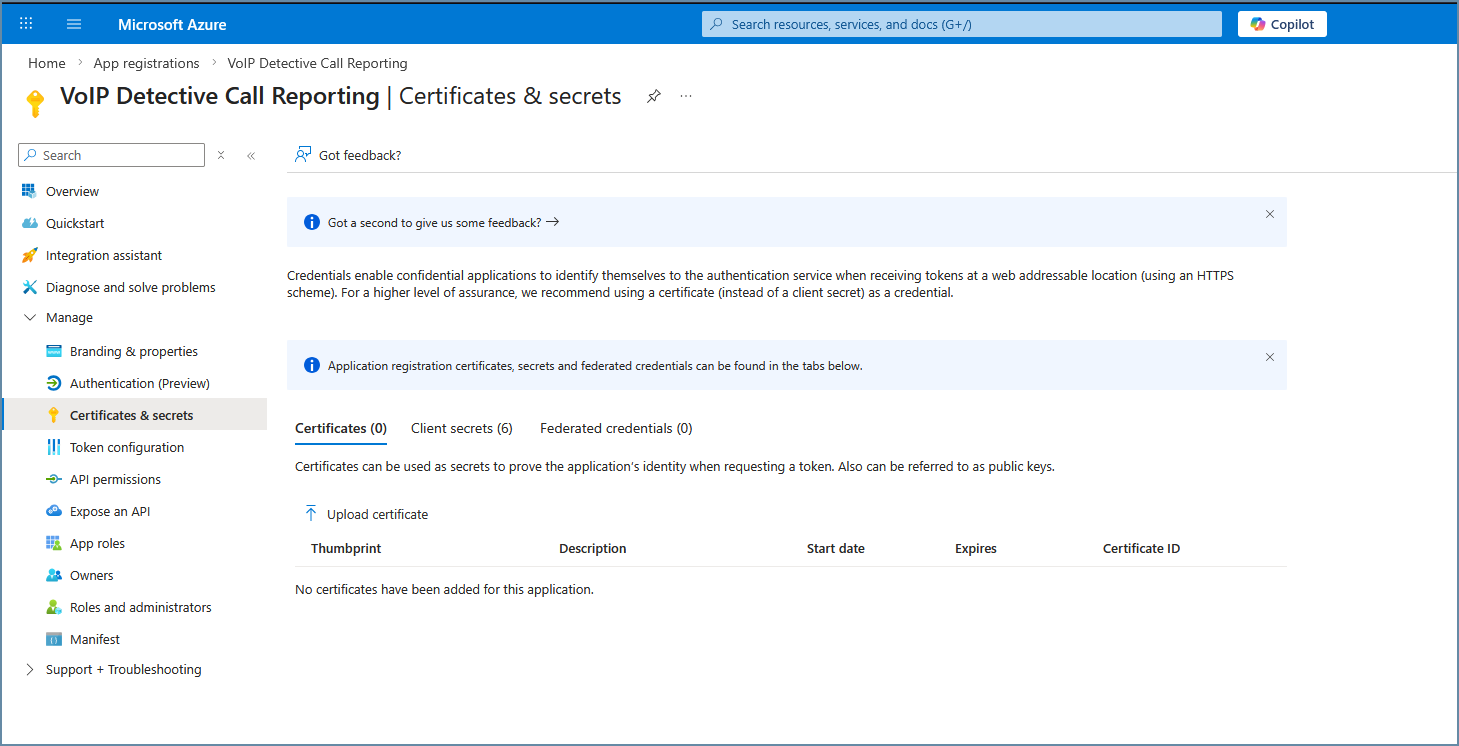
7. Browse to the `.crt` file that was just downloaded and upload it.
8. You should see the certificate appear in the list with a thumbprint that matches what VoIP Detective shows.
That's it — the certificate is now configured on both sides.
Option B: Client Secret
Client secrets are text-based passwords that Azure generates. They are simpler to set up, but they expire and must be manually renewed.
In the Azure Portal:
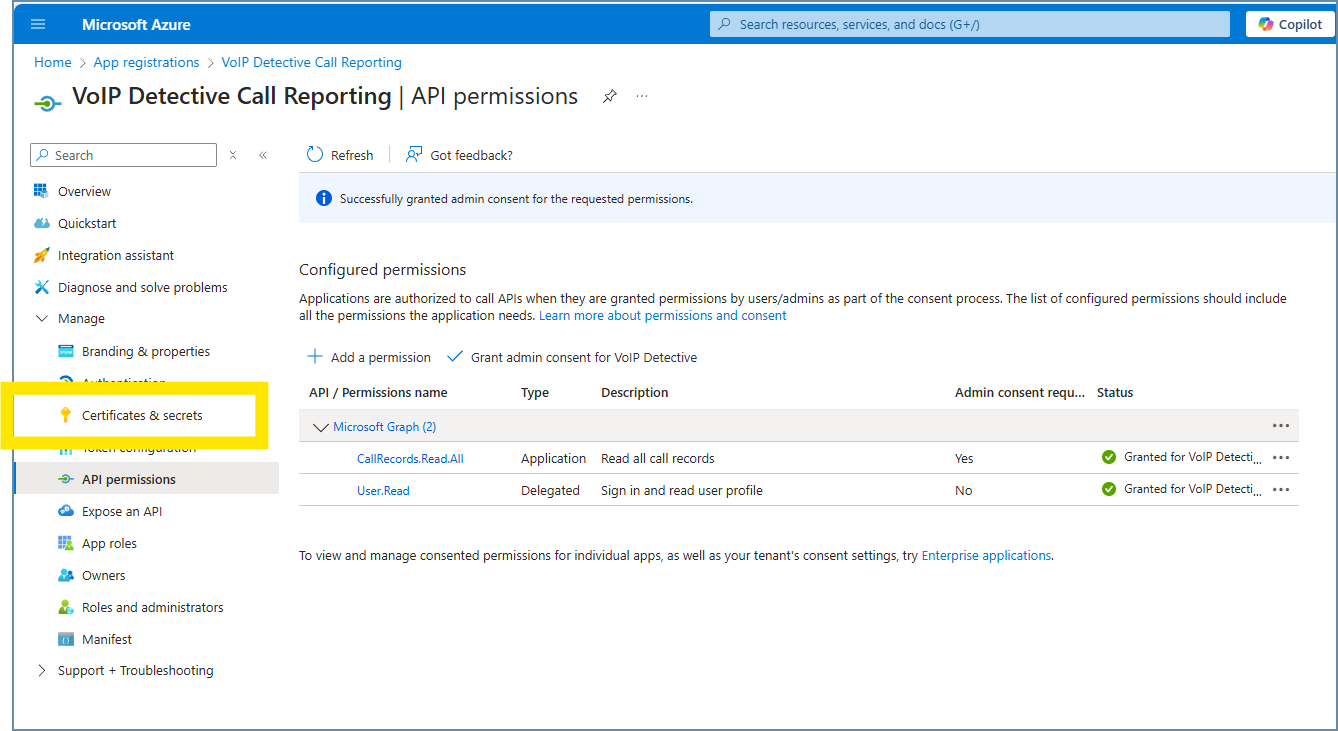
1. Go to "Certificates and secrets"
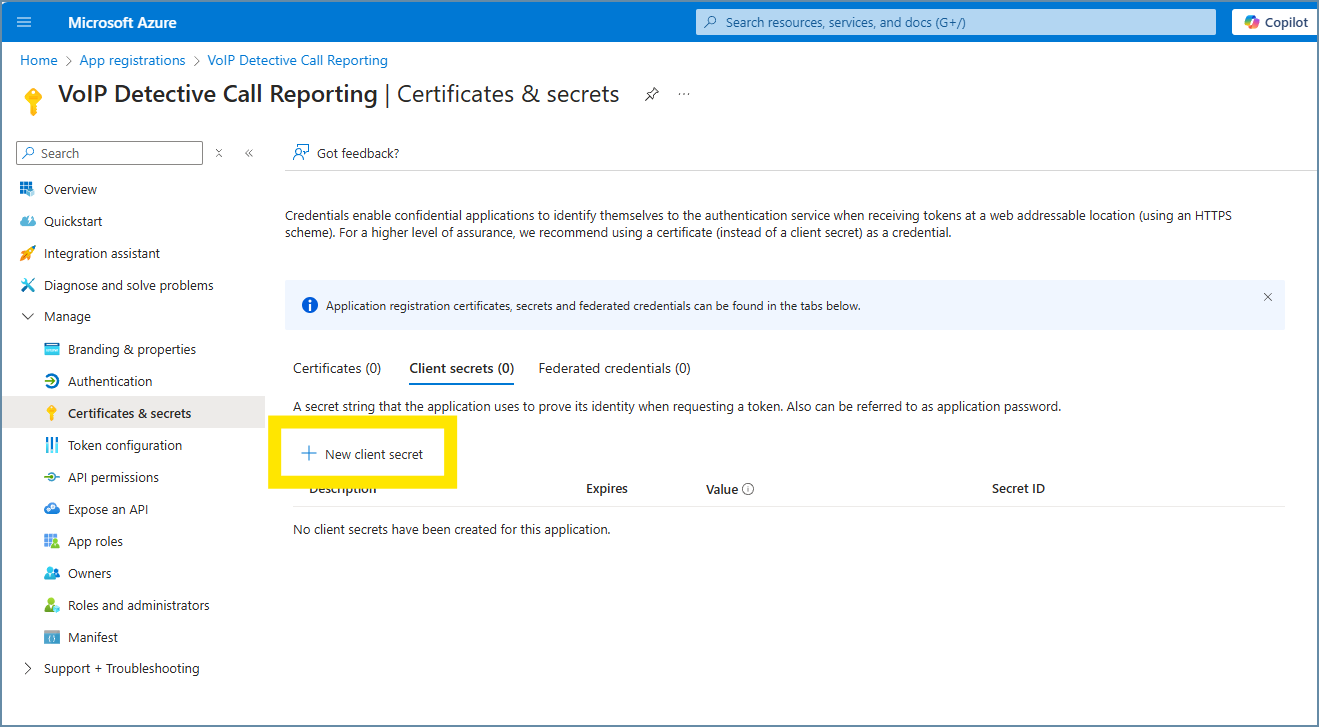
2. Generate a new client secret by clicking on "New client secret"
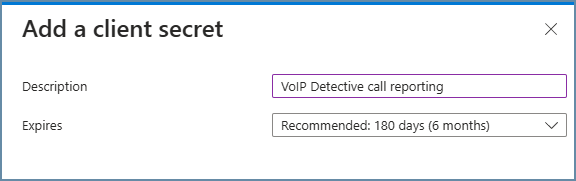
3. Give the client secret a description and choose when it should expire.
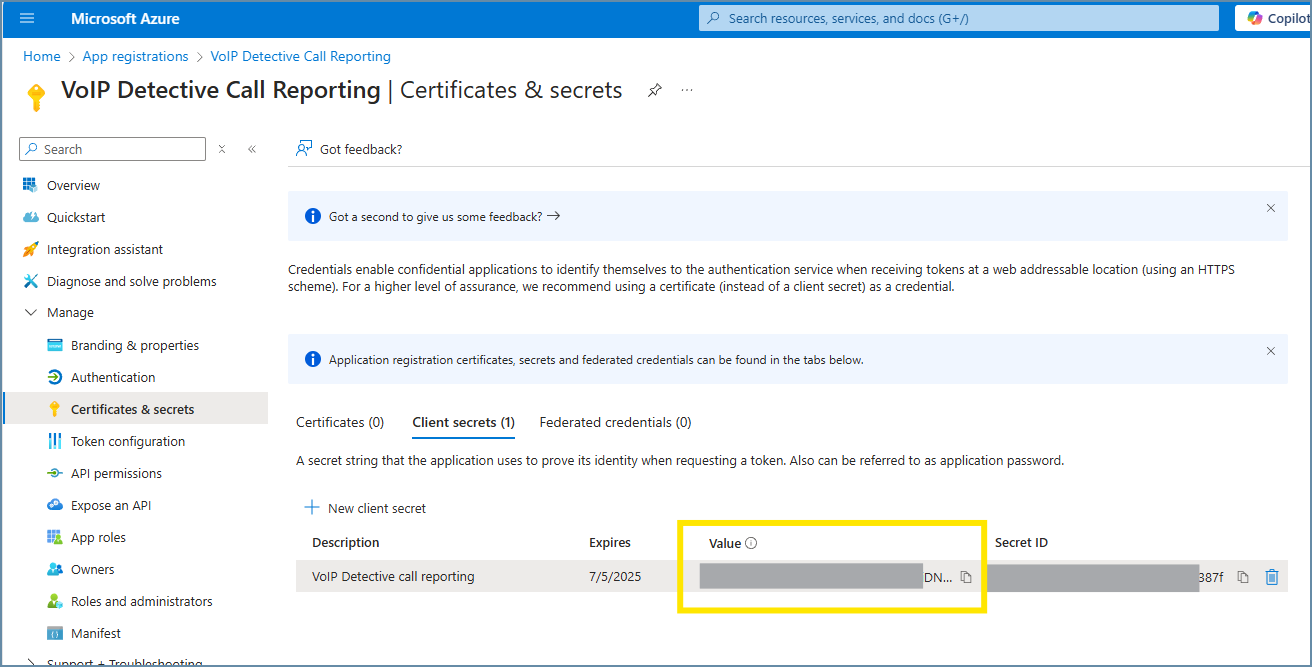
4. Copy the client secret value, as we will add it to VoIP Detective shortly.
In VoIP Detective:
5. Go to Administration → Configuration → MS Teams Call Reporting.
6. Make sure the Authentication Method is set to Client Secret.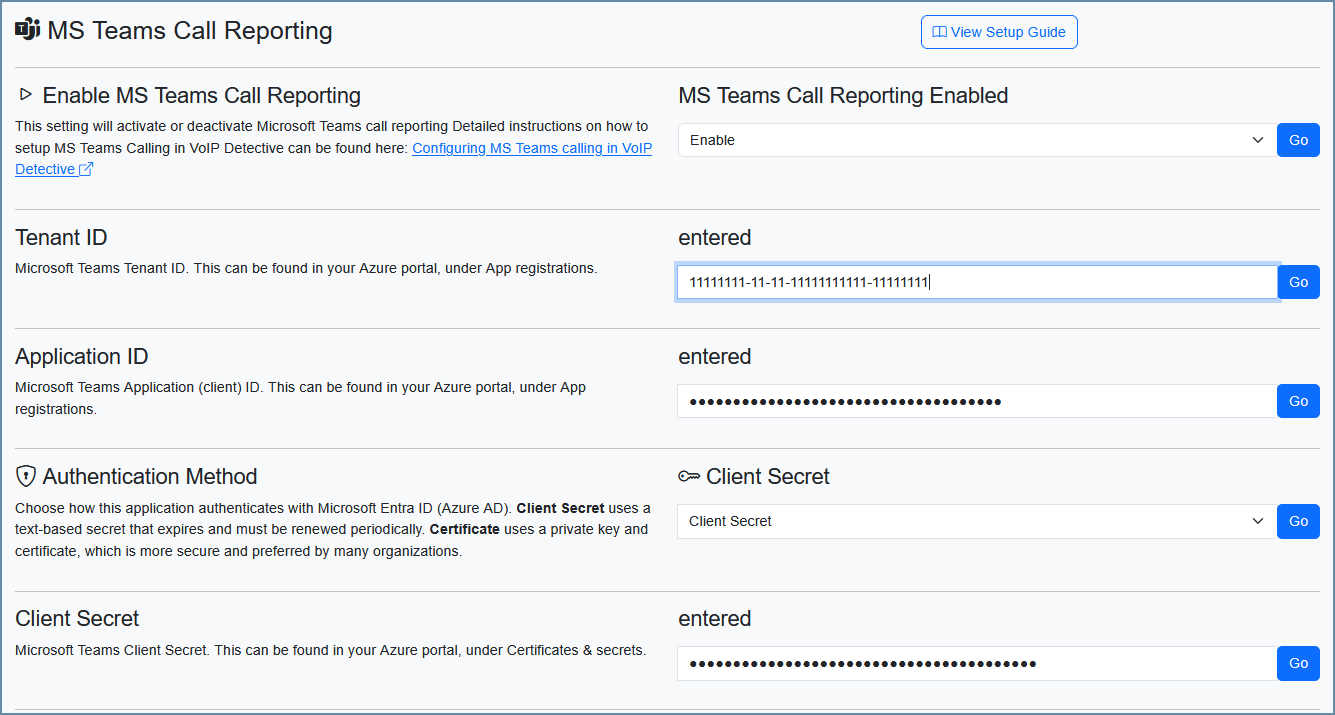
7. Paste the client secret value into the Client Secret field.
Please note — client secrets must be manually created through the Azure Portal, and cannot be extended by VoIP Detective. You will need to manually create a new client secret when the current one expires.
SSL inspection proxies
If your organization uses an SSL inspection proxy, you may notice that Teams reporting works normally at first, but then fails. What we have found is that the proxy may use its own SSL certificate when passing traffic to the Microsoft API. This prevents our token from refreshing, meaning that call retrieval will work at first, but once the token expires, we cannot renew, and call processing will stop.
To prevent this from happening, you have the option of uploading the proxy root certificate to VoIP Detective. VoIP Detective will use this certificate on outbound requests to the Microsoft API. To configure this, go to Administration -> Configuration and scroll down to the MS Teams Call Reporting section. There you will have the option to upload your Root CA certificate. You also have the option to delete this certificate if needed.
More about this certificate : This should be your organization's Root CA certificate - the one that is at the top of your internal PKI trust chain. This is the same certificate that's typically deployed to all corporate workstations to make SSL inspection work in browsers.
Your IT security or PKI team should be able to provide this. It's often called something like 'Corporate Root CA' or '[CompanyName] Root CA'. Export it in PEM format (Base64 encoded, usually a .crt or .pem file).

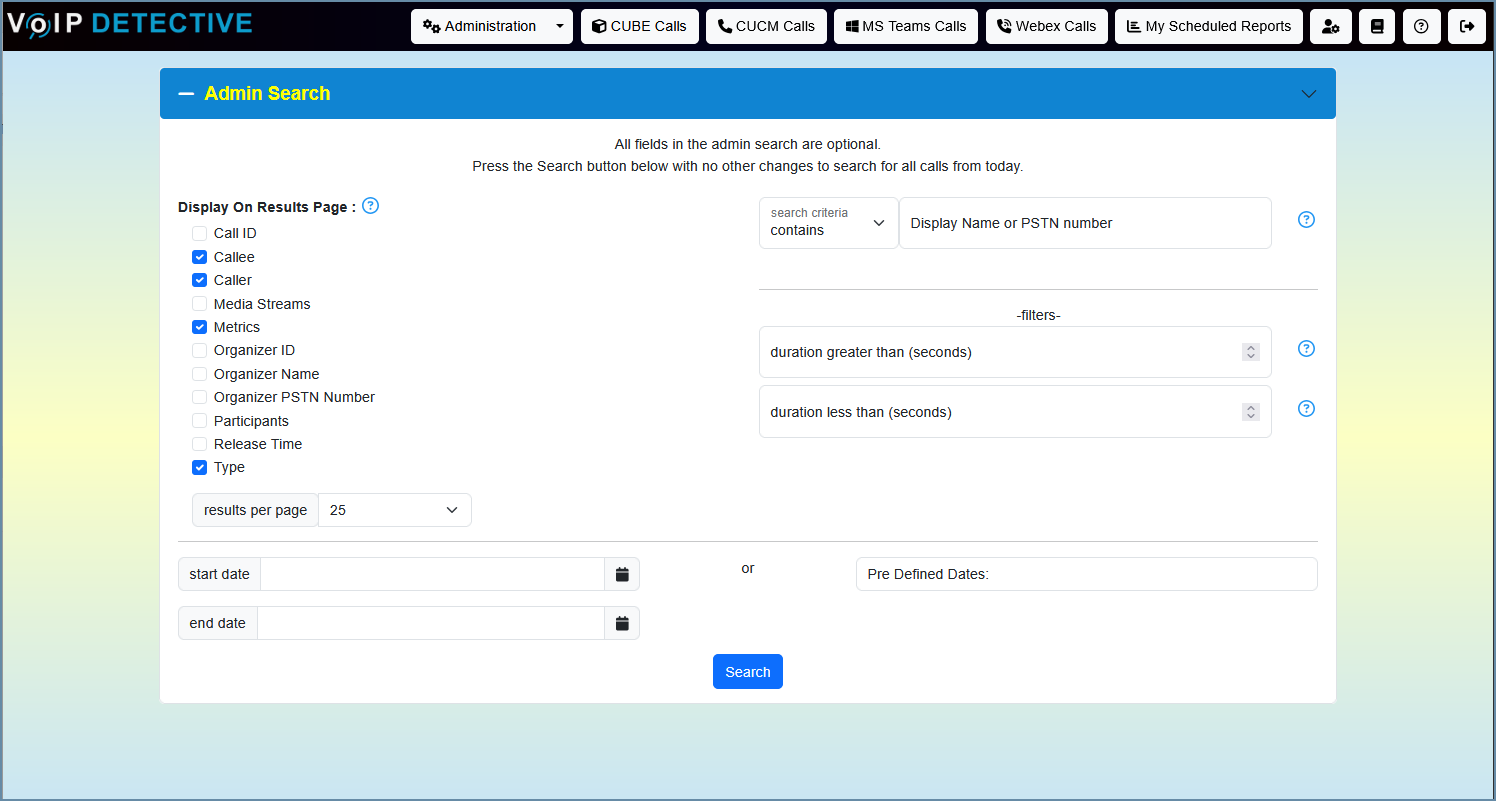
VoIP Detective will pull call records from MS Teams every 5 minutes. So wait a bit, then choose "MS Teams Calls" from the top menubar and then select Admin Search. By hitting the "search" button, you will see calls that have been imported today.
Was this article helpful?
That’s Great!
Thank you for your feedback
Sorry! We couldn't be helpful
Thank you for your feedback
Feedback sent
We appreciate your effort and will try to fix the article