VoIP Detective is capable of supporting https through the use of a SSL certificate. This will require you generating a CSR from inside of VoIP Detective, and providing that CSR to a Certificate Authority, and finally installing the provided certificate and CA bundle.
Requirements
- VoIP Detective PRO
- Virtual Machine OS version 2.3 or higher (visit Administration -> System Status to view your version).
Overview:
- Verify that you are using a hostname (not an IP address), similar to voipdetective.mycompany.com. You should see this hostname listed in the URL bar of your browser.
- Verify that you have set the hostname in the CLI as outlined here - https://voipdetective.freshdesk.com/a/solutions/articles/48001063796
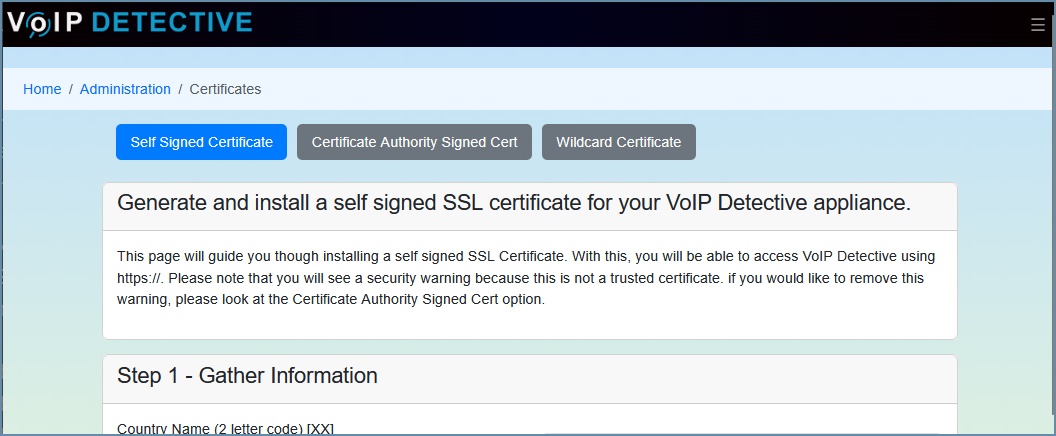
- Visit Administration -> Certificates and choose the type of certificate you want from the top three buttons.
- Self Signed Certificate - this machine will make it's own certificate. This will allow you to use https, but will display a security alert to visitors.
- Certificate Authority Signed Cert - this will allow you to add a certificate made just for this machine.
- Wildcard Certificate - here you can install a wildcard certificate (i.e. a cert that is made for many computers).
Installing a CA certificate:
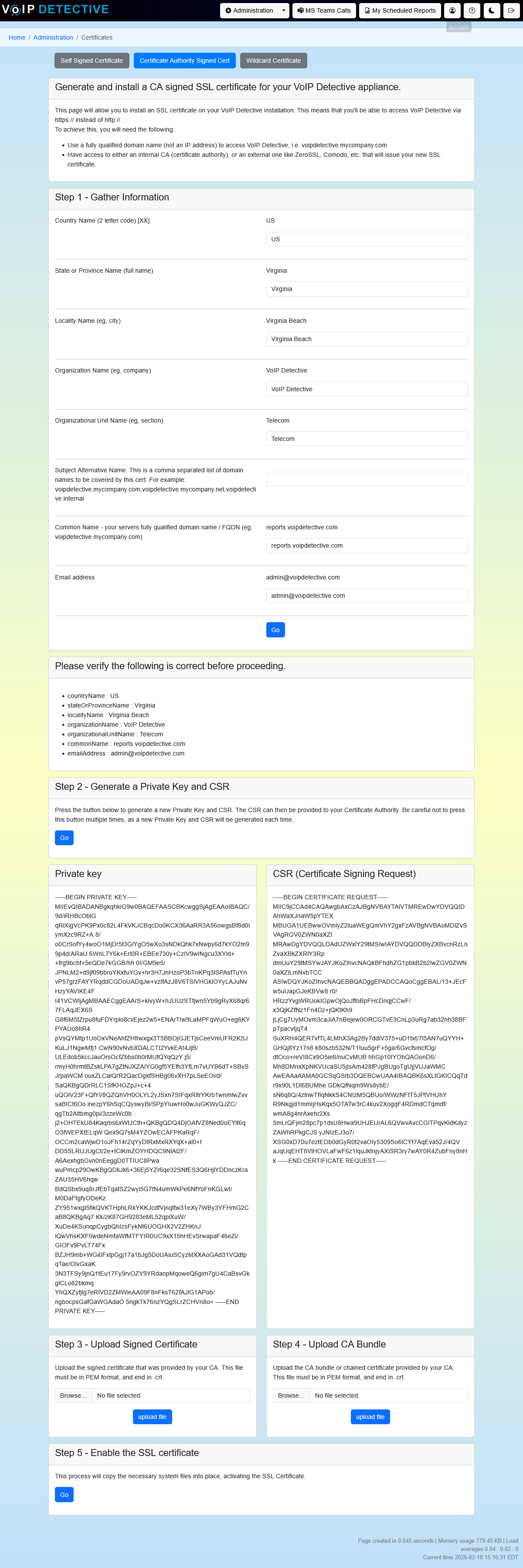
There are six steps to installing a CA certificate:
- Step 1 - fill out your organization information
- Step 2 - Press the "GO" button to generate the private key and CSR. You will need to provide both files (the key and csr) to your certificate authority. They will provide you with two files, a certificate and a CA bundle. These files should all be in PEM format, and the extensions should be .crt. You should be able to open these in notepad and see ---BEGIN at the top, and END XXX --- at the bottom.
- Step 3 - press browse, find the new certificate and press the "upload file" button
- Step 4 - press browse, find the CA bundle, and press the "upload file" button
- Step 5 - press GO in order to copy the files into place.
- Step 6 - reboot the virtual machine
In the event of an error - deleting an invalid certificate:
Should an error occur during or after certificate installation, it is likely that the Apache web server that powers VoIP Detective may not be able to start. In this event, please login to the CLI (default password) and choose these menu options:
- security (SSL,TLS,ciphers, and certificates)
- configure SSL, TLS & Ciphers
- Delete all SSL certificate configuration
This will delete all installed CSRs and Certificates and allow you to start over.
After doing this, please access VoIP Detective via http://
Installing a Self Signed Certificate from the command line
If you are unable to access VoIP Detective because of a certificate issue, you can deleted the certificate (see above) and install a new self signed certificate from the command line. To install a self signed certificate do the following:
- security (SSL,TLS,ciphers, and certificates)
- configure SSL, TLS & Ciphers
- Install self-signed certificate
Verifying the CSR:
Should you need to, you can verify the CSR created by VoIP Detective by pasting it into a tool like this:
or
https://www.sslchecker.com/csr/decode
This will allow you to verify that your CSR is accurate and in the proper format.
Tips and Tricks
Some authorities may reject the CSR as invalid or corrupt due to formatting. VoIP Detective produces CSRs that are all one one line, like this:
-----BEGIN CERTIFICATE REQUEST-----
XXXXXXXXXXXXXXXXXXXXXXXXXXXXXXXXXXXXXXX
 -----END CERTIFICATE REQUEST-----
Should your CSR be rejected, try adding a line break (press the enter key) after the begin and before the end lines, like so:
-----BEGIN CERTIFICATE REQUEST----- XXXXXXXXXXXXXXXXXXXXXXXXXXXXXXXXXXXXXXX -----END CERTIFICATE REQUEST-----
Was this article helpful?
That’s Great!
Thank you for your feedback
Sorry! We couldn't be helpful
Thank you for your feedback
Feedback sent
We appreciate your effort and will try to fix the article