The Network Quality Search helps administrators find calls where network conditions may have caused poor audio quality. Unlike other reports that show CDR data (caller, called, duration), this report queries the CMR (Call Management Record) table directly to surface jitter, latency, and packet loss metrics at the individual call-leg level. It is the primary tool for diagnosing and locating voice quality issues on a CUCM network.
Overview
Who can use this report: Administrators and Global Managers only. This report requires a VoIP Detective PRO license.
Data source: CMR records from Cisco Unified Communications Manager. VoIP Detective stores 30 days of CMR data. CMR records must be enabled on your CUCM cluster for this report to have data.
Key concept – Call Legs: This report operates at the call-leg level, not the call level. A single phone call typically generates multiple CMR records – one for each device involved (desk phone, gateway, conference bridge, etc.). Each leg has its own independent quality metrics. This means a single call may appear as two or more rows in the results, each with different jitter, latency, and packet loss values.
ℹ️ Tip: A standard call from a desk phone to an external number typically produces two call legs: one from the phone to CUCM/gateway, and one from the gateway out. Inbound calls that go unanswered may only show the originating side (gateway) leg, since the phone never connected.
The Search Form
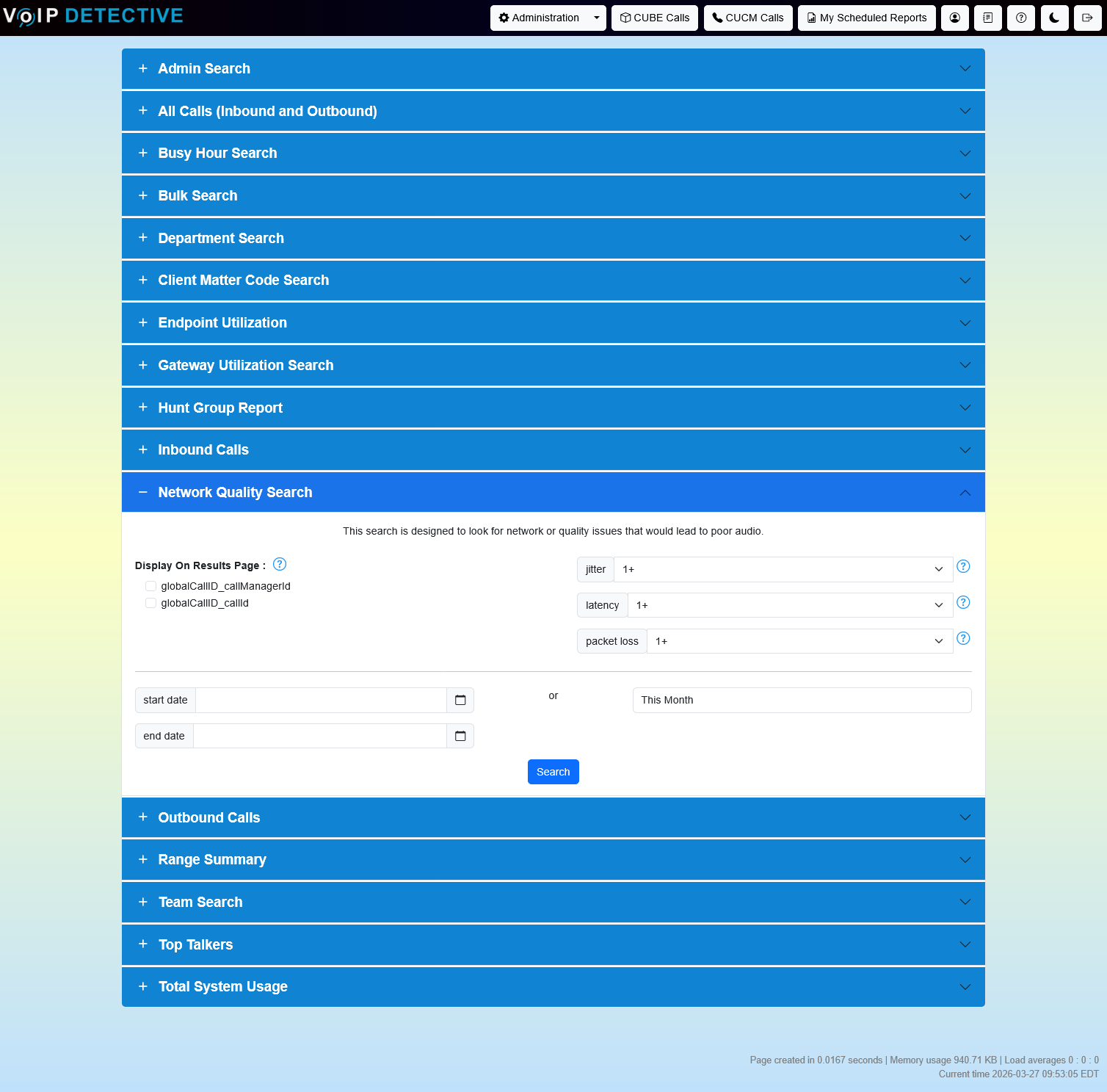
The Network Quality search form lets you set threshold values for three quality metrics and a date range.
Quality Metric Filters
Each metric has a dropdown where you can select a threshold value, or choose “Ignore this metric” to skip that filter. Metrics are combined with an OR logic – a call leg is included if it exceeds any of the selected thresholds.
Metric | What It Measures | Unit |
Jitter | The variation in the timing of packet arrival. High jitter causes choppy or robotic-sounding audio because packets arrive out of their expected rhythm. | Milliseconds (ms) |
Latency | The one-way delay for a voice packet to travel from sender to receiver. High latency causes noticeable delay in conversation, making it hard to have a natural back-and-forth. | Milliseconds (ms) |
Packet Loss | The number of voice packets that failed to reach their destination. Lost packets create gaps, clicks, or silence in the audio. Even 1–2% packet loss can significantly degrade voice quality. | Number of packets |
How filtering works: If you set Jitter to 30, Latency to 100, and Packet Loss to 50, the results will include any call leg where jitter ≥ 30ms OR latency ≥ 100ms OR packet loss ≥ 50 packets. If you leave all three set to “Ignore,” the search returns every call leg that has associated CMR data.
ℹ️ Tip: Start with conservative thresholds (e.g., Jitter ≥ 30ms, Latency ≥ 150ms, Packet Loss ≥ 10) to find the worst offenders, then gradually lower them to identify emerging issues.
Display Options
Option | Description | Default |
Show Call Manager ID | Adds a column showing the CUCM node (globalCallID_callManagerId) that processed the call. Useful in multi-node clusters. | Off |
Show Call ID | Adds a column showing the globalCallID_callId, which can be used to cross-reference with the Admin Search. | Off |
Date Range
Custom dates: Use the calendar pickers. Defaults to today (00:00–23:59) if left blank.
Predefined dates: Select from the dropdown (Today, Yesterday, This Week, Last 7 Days, etc.).
Understanding the Results
Network Quality Chart
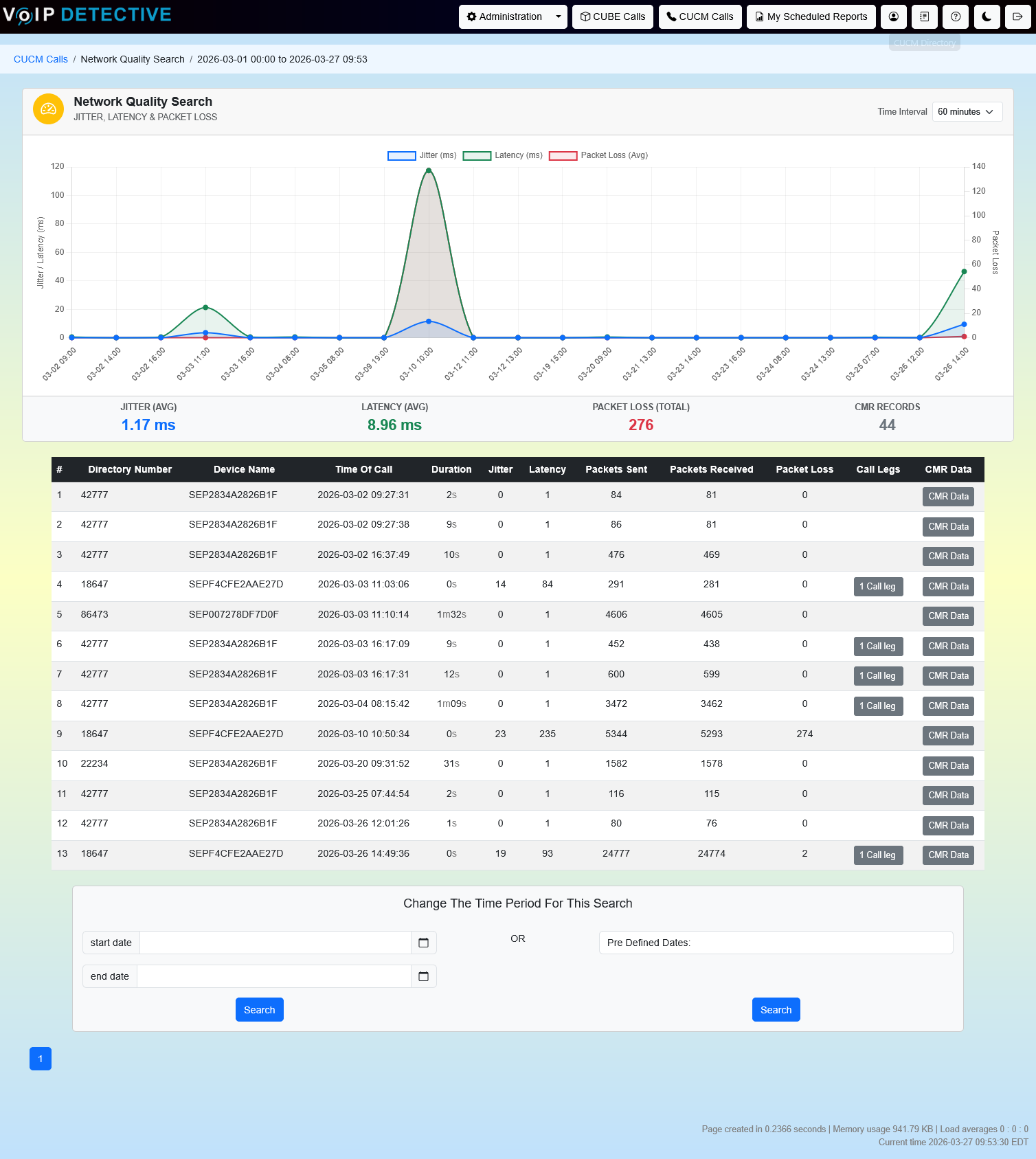
When results exist, an interactive line chart appears on the first page of results. It plots three data series over time:
Jitter (blue, left axis) – average jitter in milliseconds per interval.
Latency (green, left axis) – average latency in milliseconds per interval.
Packet Loss (red, right axis) – average number of lost packets per interval.
Time Interval selector – A dropdown in the chart header lets you change the aggregation interval: 10 minutes, 15 minutes, 30 minutes, or 60 minutes (default). Changing this reloads the chart data dynamically without refreshing the page.
The chart footer displays four summary statistics across the entire date range:
Statistic | Description |
Jitter (Avg) | The average jitter across all CMR records in the date range. |
Latency (Avg) | The average latency across all CMR records. |
Packet Loss (Total) | The sum of all lost packets across all CMR records. |
CMR Records | The total number of call-leg CMR records matching your filters. |
ℹ️ Tip: Use the chart to spot patterns: does jitter spike at the same time every day? Does packet loss correlate with high call volume? Narrow the interval to 10 minutes to pinpoint the exact time window of a problem.
Results Table
The table shows one row per call leg (CMR record), sortable by clicking any column header. Results are paginated at 50 rows per page.
Columns
Column | Description |
# | Sequential row number. |
Call Manager ID | The CUCM cluster node that processed this call. Only shown if enabled. Useful for multi-node troubleshooting. |
Call ID | The globalCallID_callId for cross-referencing with the Admin Search. Only shown if enabled. |
Directory Number | The extension or DN associated with this call leg. |
Device Name | The device (phone MAC address, gateway name, conference bridge, etc.) that generated this CMR record. |
Time of Call | When the call occurred, displayed in your configured time zone. |
Duration | The connected time for this call leg. |
Jitter | The measured jitter in milliseconds for this leg. 0 or NULL means no jitter was reported. |
Latency | The measured one-way latency in milliseconds. 0 or NULL means no latency was reported. |
Packets Sent | Number of voice packets sent by this device during the call. |
Packets Received | Number of voice packets received by this device. |
Packet Loss | Number of packets that were lost (sent but never received by the other side). |
Call Legs | Expandable view of all CDR legs associated with this call – the same leg browser available in the Admin Search. |
CMR Data | Opens a detailed modal showing the full CMR record for this call, including codec, bandwidth, concealment ratios, SCSR, MOS (older phones), and per-leg quality metrics. |
CMR Data Modal
Clicking “CMR Data” opens a detailed modal organized as a timeline of call legs. Each leg shows:
Call Technical Data – The call ID, call manager ID, and call identifier used to link this CMR to its CDR record.
Per-Leg Metrics – Device name, directory number, call timing (start, connect, disconnect), duration, calling/called numbers, original and final called party patterns, and redirect information.
Quality Metrics – Codec used (e.g., G.711 u-law, G.729), packet size, packets sent/received/lost/discarded, latency, max jitter, and concealment metrics:
Metric | Meaning |
Cumulative Conceal Ratio | The ratio of concealment time over speech time for the entire call. Higher values indicate more audio had to be reconstructed. |
Interval Conceal Ratio | The concealment ratio for the last 3 seconds of active speech. Useful for spotting end-of-call degradation. |
Max Conceal Ratio | The peak concealment ratio observed at any point during the call. |
Conceal Seconds | Total seconds during which any concealment was applied. |
Severely Conceal Seconds | Seconds where concealment exceeded approximately 50ms or 5% – speech likely sounded unintelligible during these moments. |
MOS Version | Mean Opinion Score (reported by older phones like the 7900 series). Ranges from 1 (poor) to 5 (excellent). Not reported by newer SIP phones. |
SCSR | Severely Concealed Seconds Ratio – the quality metric Cisco uses on newer phones in place of MOS. |
VoRxCodec | The codec negotiated for this call leg (e.g., G.711 u-law, G.729, iLBC). |
VoOneWayDelayMs | One-way packet delay in milliseconds. |
Max Jitter | The maximum jitter spike seen during the call (in microseconds on some devices). |
ℹ️ Tip: Hover over the blue question mark icons in the CMR modal for Cisco’s official field descriptions.
Understanding Call Legs
Because the Network Quality search operates at the call-leg level, understanding how legs work is essential to interpreting results correctly.
Answered Call (Typical)
An inbound call from the PSTN to a desk phone creates two CMR records: one for the gateway/CUBE leg and one for the desk phone leg. Both legs will have quality metrics. The gateway leg shows the network quality between the PSTN and CUCM, while the phone leg shows quality between CUCM and the handset.
Unanswered Call
If a call rings but is never picked up, only the originating side (typically the gateway for inbound calls) will have a CMR record. The destination phone never connected, so no quality data was generated for that leg.
Transferred / Conferenced Call
A transferred call generates additional legs for each hop. A three-party conference may produce six or more CMR records. Each participant’s connection to the conference bridge is a separate leg with its own quality metrics.
Missing CMR Data
Not all devices generate CMR data. Some older gateways and third-party SIP trunks may not produce CMR records. If you see a call leg with no quality metrics, it means the device did not report them to CUCM.
Using This Report for Troubleshooting
Step 1: Identify the Scope
Start by running the search with loose thresholds (or “Ignore” all metrics) for the time period when users reported issues. Use the chart to see if the problem is continuous or intermittent, and at what time it peaks.
Step 2: Narrow the Window
Switch the chart interval to 10 or 15 minutes to pinpoint exactly when issues occur. Look for correlations with specific times of day (e.g., business hours = more calls = more congestion).
Step 3: Identify the Device
Look at the Device Name column in the results table. If most high-jitter or high-loss records share the same gateway, the issue is likely in the WAN link or gateway configuration. If problems are spread across many desk phones, look at the LAN switches and network infrastructure.
Step 4: Drill into CMR Data
Click “CMR Data” on a problem call to see the full quality breakdown per leg. Compare the phone leg vs. the gateway leg – if the phone leg shows high jitter but the gateway is clean, the problem is between the phone and the network. Check codec type, packet size, and concealment ratios for deeper insight.
Step 5: Cross-Reference with Admin Search
Enable the “Show Call ID” column, then use that Call ID in the Admin Search to find the full CDR record for the call – including caller, called party, termination code, and call flow details.
Recommended Quality Thresholds
The following are general guidelines for voice quality. Actual tolerance depends on the codec in use and network design:
Metric | Good | Acceptable | Poor |
Jitter | < 30 ms | 30–50 ms | > 50 ms |
Latency (one-way) | < 150 ms | 150–300 ms | > 300 ms |
Packet Loss | 0 packets | < 1% of total | > 1% of total |
Important: These thresholds are general industry guidelines. G.729 is more sensitive to packet loss than G.711 because it uses smaller packets. Consult your network team for thresholds specific to your deployment.
Frequently Asked Questions
Why don’t I see any results?
CMR data must be enabled in your CUCM cluster (Serviceability > CDR Management). If CMR is not enabled, CUCM will not generate quality records and this report will be empty. Additionally, this report requires a VoIP Detective PRO license.
Why does the same call appear multiple times?
Each row is a call leg, not a call. A single phone call typically has 2+ legs (one per device). This is by design – it lets you see which specific device or network segment had the quality issue.
Why do some legs show 0 for all metrics?
Some devices don’t report jitter, latency, or packet loss to CUCM. Gateways in particular may only report packet counts. A value of 0 means the device reported zero – or the field was NULL and VoIP Detective displays it as 0.
What is the difference between this report and the CMR Data in the Admin Search?
The Admin Search shows CDR records (caller, called, duration, termination code) and lets you optionally view CMR details for a specific call. The Network Quality Search is the reverse – it queries the CMR table directly, letting you search by quality thresholds to find problematic calls you might not otherwise know about.
How long is CMR data retained?
VoIP Detective stores 30 days of CMR data. Older records are automatically purged.
Why doesn’t my phone show MOS scores?
Cisco discontinued MOS on newer SIP phone models. Phones like the 7900 series still report MOS, but 8800 and 7800 series use SCSR and concealment metrics instead. Both are available in the CMR Data modal.
Was this article helpful?
That’s Great!
Thank you for your feedback
Sorry! We couldn't be helpful
Thank you for your feedback
Feedback sent
We appreciate your effort and will try to fix the article