The Admin Search is the most powerful and flexible search in VoIP Detective. It allows administrators and global managers to locate any call record in the CUCM CDR database without restrictions – including completed calls, failed calls, transfers, conferences, and calls that never connected. With advanced filters for gateway, IP address, device MAC, call termination code, redirect reason, and duration range, it is the go-to tool for troubleshooting and auditing.
Overview
Who can use this report: Administrators (Group 2) and Global Managers (Group 4) only. Standard users and managers do not have access to the Admin Search.
Default behavior: If you press Search without entering any digits, the report returns all calls for today. If you enter digits, it searches for that string as part of any calling, called, hunt pilot, final called, or outpulsed number – using a “Contains” match by default. For example, searching for 911 will return 9911, 12349110, etc.
ℹ️ Tip: With most elements in VoIP Detective, hovering your mouse over a label or column header will display a tooltip with a detailed description.
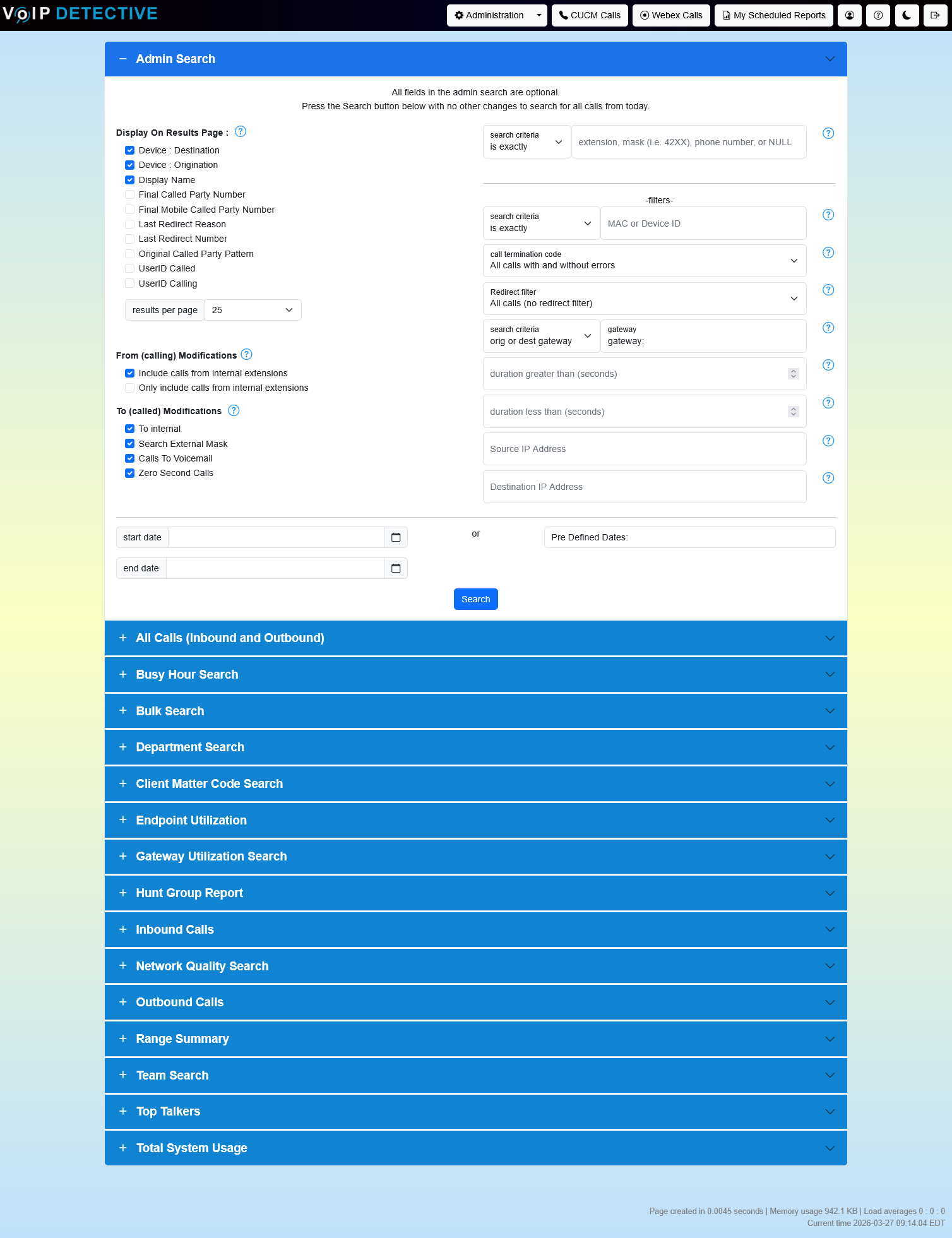
The Search Form
Display On Results Page
These checkboxes add optional columns to the results table:
Option | Description | Default |
Device: Origination | Shows the originating device name (MAC address or gateway name) for the call. | Checked |
Device: Destination | Shows the destination device name where the call terminated. | Checked |
Display Name [PRO] | Replaces raw extensions with user display names from the CUCM directory. | Unchecked |
Final Called Party # [PRO] | The number where the call ultimately terminated after all forwards and transfers. | Unchecked |
Final Mobile Called Party # [PRO] | The mobile number that answered the call via Single Number Reach. Empty if the final device was not mobile. | Unchecked |
Last Redirect Reason [PRO] | The CUCM redirect reason code for the last redirection that occurred on the call. | Unchecked |
Last Redirect DN [PRO] | The directory number that last redirected the call. | Unchecked |
Original Called Party Pattern [PRO] | The route pattern or translation pattern that was originally matched by the called number. | Unchecked |
UserID Called [PRO] | The User ID of the person who answered the call. Useful for shared lines and hunt groups. | Unchecked |
UserID Calling [PRO] | The User ID of the person who placed the call. Useful for shared lines. | Unchecked |
From (Calling) Modifications
These filters control which calls are included based on the calling party:
Filter | Description |
Include calls from internal extensions | Include calls where the calling number is the same digit length as your configured extension length. Enabled by default. |
Only include calls from internal extensions | Show only calls originating from internal extensions (excludes external inbound calls). Disabled by default. |
To (Called) Modifications
Filter | Description |
To internal | Include calls to numbers that are the same digit length as your extension. Enabled by default. |
Search External Mask | Also search the outpulsedCallingPartyNumber field (external number mask) for matches. |
General Modifications
Filter | Description |
Filter Call Recordings | When calls are recorded, the bridged/spanned leg to the recording server can create duplicate entries. Enable this to hide those duplicates. |
Calls to Voicemail | Include calls where the user dialed the voicemail pilot (e.g., checking messages). |
Zero Second Calls | Include calls with 0-second duration (busy signals, misdials, calls that never connected). |
Search Input
Extension, Mask, or Phone Number – Enter digits to search for. Use X (uppercase) as a single-digit wildcard. Supports “+” for E.164 numbers and “b” prefix for conference bridge IDs. Leave blank to return all calls.
Search Criteria dropdown – controls how your input is matched:
Criteria | Behavior |
Contains (default) | Matches any record where the digits appear anywhere in the number. This is the default for Admin Search – unlike All Calls which defaults to Is Exactly. |
Begins With | Matches numbers that start with your digits. |
Ends With | Matches numbers that end with your digits. |
Is Exactly | Matches only the exact number you enter. |
The search matches against: originalCalledPartyNumber, originalCalledPartyPattern, huntPilotDN, finalCalledPartyNumber, callingPartyNumber, and optionally outpulsedCallingPartyNumber (when Search External Mask is enabled).
Advanced Filters
The Admin Search includes several powerful filters not available on other reports:
Call Termination Code Filter
Filter results by the CUCM call termination (disconnect) code. Options include:
Option | Behavior |
Any | Show all calls regardless of termination code (default). |
Normal Calls Only (0/16) | Show only calls that terminated normally (codes 0, 16, or 393216). |
Errors Only | Show only calls with a non-normal termination code. Useful for troubleshooting failed calls. |
Specific Code | Enter a specific CUCM cause code number to filter by. |
ℹ️ Tip: In the results table, non-zero termination codes appear as clickable labels. Hover over them to see the CUCM cause code description.
Redirect Filter
Filter calls by their last redirect reason code. Select “Any Redirected” to show only calls that were redirected, or enter a specific redirect reason code to narrow further.
Duration Filter
Enter a minimum and/or maximum duration (in seconds) to restrict results to calls within that range. For example, set “Duration Greater Than” to 300 to find calls longer than 5 minutes.
Gateway / Device Filter
Search by the originating or destination device (gateway) name. Options:
Option | Behavior |
Both (default) | Match the gateway name in either the originating or destination device field. |
Originating Only | Match only the originating device. |
Destination Only | Match only the destination device. |
Begins With (Orig) | Partial match on the originating device name. |
Begins With (Dest) | Partial match on the destination device name. |
MAC / Device Name Search
Search by device name or MAC address with its own wildcard criteria (Contains, Begins With, Ends With, Is Exactly). This searches both origDeviceName and destDeviceName fields.
IP Address Search
Filter by source IP address and/or destination IP address. Enter a full or partial IP; the search uses a “Begins With” match so you can search by subnet (e.g., 10.1.5).
Date Range
Custom dates: Use the calendar pickers to select start and end date/time. Defaults to today (00:00–23:59) if left blank.
Predefined dates: Select from the dropdown (Today, Yesterday, This Week, Last 7 Days, This Month, etc.).
Free License Limit: On a free license, the start date is capped at 14 days in the past.
Understanding the Results
Call Activity Chart
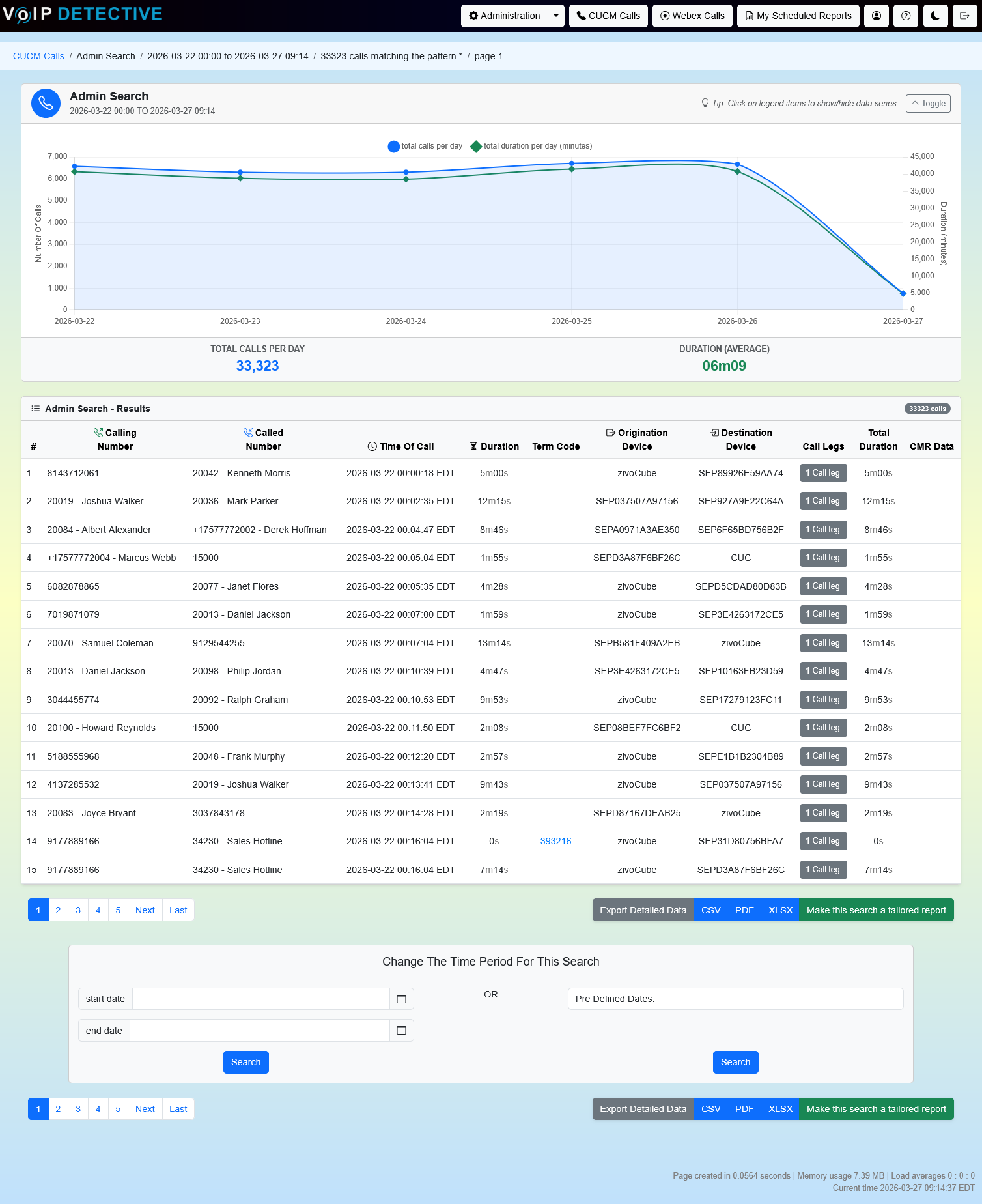
A collapsible line chart appears when results span 2+ intervals. It shows Total Calls (left axis) and Duration in Minutes (right axis), auto-switching between hourly (single-day) and daily (multi-day) views.
Results Table Columns
The table is sortable. Standard columns always shown:
Column | Description |
# | Sequential row number. |
Caller | The calling party number or extension that placed the call. |
Called | The original called party number or extension. Shows “Voicemail” if the number matches the voicemail pilot. |
Time of Call | Date, time, and time zone of the call origination. |
Duration | Connected talk time for this individual CDR record. |
Term Code | The CUCM call termination cause code. Non-normal codes are displayed; hover for a description. |
Call Legs | An expandable view showing all CDR legs associated with this call – transfers, conferences, and forwarding chains. |
Total Duration | The combined duration across all legs of the call (useful for transferred or conferenced calls). |
CMR Data | If CMR (Call Management Record) data exists, a button opens a modal with quality metrics: codec, bandwidth, MOS scores (older phones), SCSR (newer SIP phones), jitter, latency, and packet loss. |
Optional Columns
The following appear only when their checkbox is enabled on the search form: Final Called Party Number, Final Mobile Called Party Number, Original Called Party Pattern, Originating Device, Destination Device, Last Redirect Reason, Last Redirect DN, UserID Calling, and UserID Called.
CMR Data (Call Management Records)
VoIP Detective stores 30 days of CMR data. When available, clicking the “CMR Data” button opens a modal showing technical call quality details organized by call leg. Each leg shows the device type, codec used, bandwidth, and quality metrics.
Key metrics include:
MOS (Mean Opinion Score) – Reported by older phones such as the 7900 series. Ranges from 1 (poor) to 5 (excellent).
SCSR (Severely Concealed Seconds Ratio) – Used by newer SIP phones. Cisco has transitioned from MOS to SCSR for quality measurement.
Jitter, Latency, Packet Loss – Network quality indicators available per call leg.
ℹ️ Tip: Hover over the blue question mark icons in the CMR modal for detailed explanations of each metric.
Exporting Results
Export buttons appear above and below the results table.
Available Formats
Format | Details | Row Limit |
Landscape A4 with headers, footers, page numbers. Some columns excluded for space. | 500 rows | |
XLSX | Full data with styled headers. Includes bandwidth and cause code columns not shown in PDF. | 100,000 (PRO) / 1,000 (Free) |
CSV | Raw data for import into other tools. Same columns as XLSX. | 100,000 (PRO) / 1,000 (Free) |
XLSX and CSV exports include additional columns not visible on screen: Originating Device Bandwidth, Destination Device Bandwidth, origCause, and destCause. PRO users with call leg export enabled also get individual leg records.
Tailored & Scheduled Reports
PRO users can set up Tailored Reports for automated recurring exports delivered by email.
Free vs. PRO License
Capability | Free | PRO |
Date range limit | Last 14 days | Unlimited |
Display Name | Disabled | Available |
Final Called Party # | Placeholder | Full data |
Final Mobile Called Party # | Placeholder | Full data |
UserID Called / Calling | Placeholder | Full data |
Original Called Party Pattern | Placeholder | Full data |
Last Redirect Reason / DN | Placeholder | Full data |
XLSX / CSV export limit | 1,000 rows | 100,000 rows |
Tailored / Scheduled reports | Not available | Available |
Tips & Frequently Asked Questions
How do I find failed calls?
Set the Call Termination Code filter to “Errors Only.” This shows only calls with non-normal disconnect codes, such as network failures, busy responses, or routing errors. Hover over the Term Code in the results to see the exact CUCM cause description.
How do I search by gateway?
Enter the gateway device name (e.g., “SIPGW01”) in the Gateway field. Use the “Begins With” option if you only know part of the name. This is useful for isolating calls that traversed a specific SIP trunk or CUBE.
How do I find calls to a specific IP address?
Enter the IP address (or subnet prefix like “10.1.5”) in the Source IP or Destination IP field. The search uses a “Begins With” match, so partial IPs work for subnet-level filtering.
What is the difference between Duration and Total Duration?
Duration is the connected time for a single CDR record (one leg of the call). Total Duration sums all legs of the same call. For a simple point-to-point call they are the same, but for transferred or conferenced calls, Total Duration captures the full picture.
Why does the same call appear multiple times?
CUCM creates separate CDR records for each leg of a call (e.g., the initial call, the transfer, and the final destination). Additionally, if call recording is enabled, the bridge to the recording server creates extra records. Enable the “Filter Call Recordings” checkbox to hide recording-related duplicates.
What are MRA entries and how do they affect my results?
MRA (Managed Reporting Access) entries restrict which calls an admin can see based on number patterns. If MRA entries exist for your user account, the Admin Search will join against them and only return calls matching your assigned patterns. If no MRA entries exist, you see everything.
Why doesn’t my phone show MOS scores?
Cisco discontinued MOS reporting on newer SIP phone models. Phones like the 7900 series still report MOS, but newer models (8800 series, IP Phone 7800 series) use SCSR instead. Check the CMR data modal for the available quality metrics on your call.
Was this article helpful?
That’s Great!
Thank you for your feedback
Sorry! We couldn't be helpful
Thank you for your feedback
Feedback sent
We appreciate your effort and will try to fix the article