The Range Summary report gives a high-level view of calls into and out of a whole group of phones at once. Instead of running a report for one extension at a time, you search a range of numbers – for example every extension at a site – and get one row per number showing how many calls it had and the total talk time. From there you can click straight through to the detailed calls behind any number.
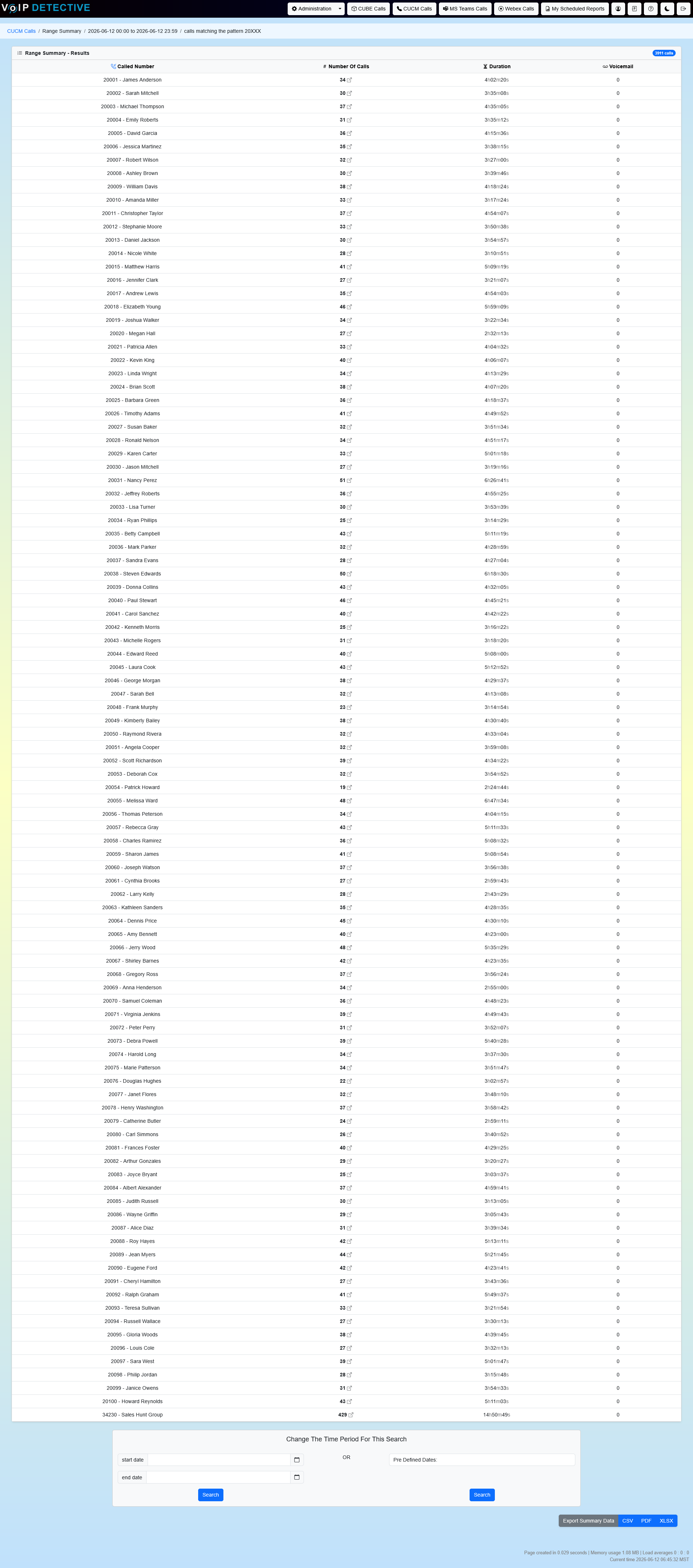
How It Works – Searching a Range
You define the group of phones with a mask, using the letter X as a single-digit wildcard. For example, if every extension at your Pittsburgh office is five digits and starts with 42, searching 42XXX covers 42000–42999 in one report. You can also enter a comma-separated list of numbers or patterns.
ℹ️ Tip: Pick the report direction to match the question you’re asking: “how many calls came in to the Pittsburgh office” is an inbound Range Summary on 42XXX; “how much are the Orlando phones calling out” is an outbound Range Summary on 43XXX.
Who Can Use This Report
The Range Summary is available to administrators and global managers. Administrators can search any range; global managers can search ranges that fall within the range assigned to them.
Performing a Range Summary
- Click Track Calls on the menu bar.
- Select the Range Summary heading to expand that section.
- Enter the range to summarize and choose the direction.
- Set any filters and the time period.
- Press the Search button.
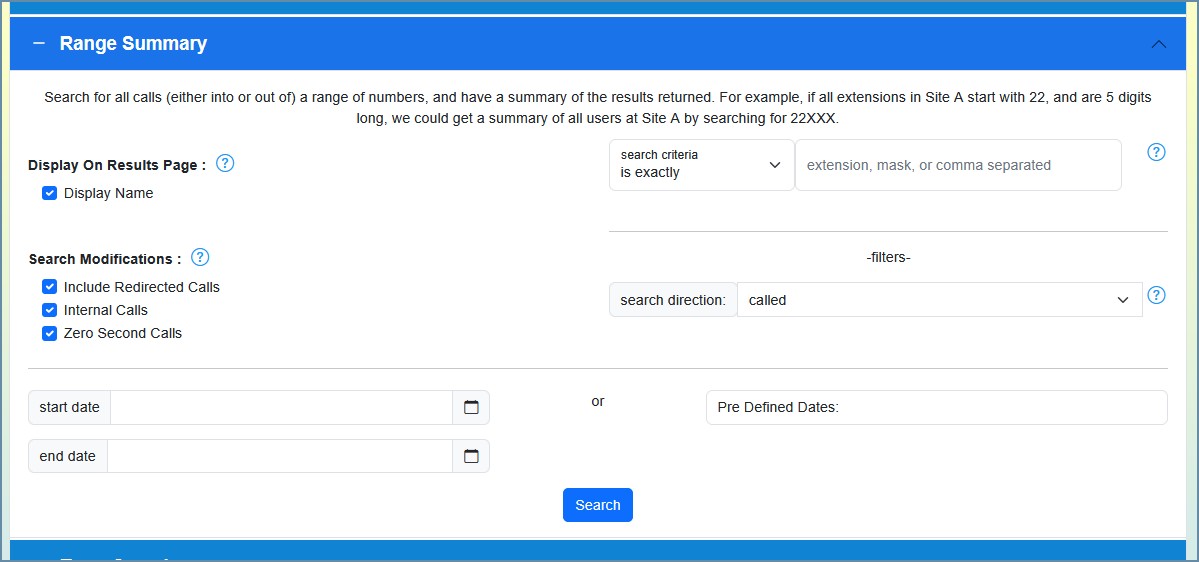
The Search Form
The Range
Type the range into the search box – a mask such as 42XXX, or a comma-separated list – and choose how it should be matched with the Search Criteria dropdown:
Search Criteria | Behavior |
Contains | Matches any number that includes the pattern anywhere. |
Begins With | Matches numbers that start with the pattern – the usual choice for a site prefix. |
Ends With | Matches numbers that end with the pattern. |
Is Exactly | Matches the exact pattern, wildcards included. |
Direction
Choose which calls to summarize for the range:
Direction | What it summarizes |
Inbound (default) | Calls coming in to each number in the range. Adds a Voicemail column, and each count links to that number’s Inbound report. |
Outbound | Calls going out from each number in the range. Each count links to that number’s Outbound report. |
Both | Shows calling and called totals together for the range. |
Filters
Filter | Description |
Include Internal Calls | Include calls between internal extensions, not just external calls. |
Include Redirected Calls | Include calls that were redirected or forwarded on their way to or from the range. |
Zero Second Calls | Include 0-second calls (typically calls that never connected). |
Display Name [PRO] | Show the end-user name next to each extension instead of just the number. |
Date Range
Custom dates: Click the calendar icon to choose a start and end date and time. If left blank, the search defaults to today.
Predefined dates: Choose a preset range such as Today, Yesterday, This Week, or Last 7 Days.
Once everything is set, click Search.
Understanding the Results
Each row is one number from the range that had activity in the period. The columns depend on the direction you chose:
Column | Description |
Calling / Called Number | The number from the range. Inbound shows the Called Number; outbound shows the Calling Number; “both” shows each side. |
Number of Calls | How many calls that number had in the period. This figure is a link – see Drilling In below. |
Duration | The combined talk time for that number. |
Voicemail | For an inbound summary, how many of the calls went to voicemail. |
A badge at the top of the results shows the total number of calls across the whole range.
Drilling In
The Number of Calls figure on each row is a link. Click it (or the small “open in new window” icon next to it) to open the detailed call report for just that number, using the same date range – the Inbound report for an inbound summary, or the Outbound report otherwise. This lets you move from the big picture straight to the individual calls without re-entering anything.
Exporting Results
Scroll to the bottom of the page and choose a format to download the summary.
Format | Best For | Row Limit |
Printing and sharing. | 500 rows | |
XLSX | Analysis in Excel or Google Sheets. | 100,000 (PRO) / 1,000 (Free) |
CSV | Importing into other tools. | 100,000 (PRO) / 1,000 (Free) |
Examples
Compare two sites. If Pittsburgh phones start with 42 and Orlando phones start with 43, run an inbound Range Summary on 42XXX and another on 43XXX to compare inbound volume between the offices.
Find the quietest extensions. Run a Range Summary across a department’s range and sort by Number of Calls to see which extensions are barely used.
Check outbound activity. Run an outbound Range Summary on a site’s range to see which phones are placing the most external calls.
Free and PRO Features
VoIP Detective Free includes | VoIP Detective PRO adds |
|
|
Was this article helpful?
That’s Great!
Thank you for your feedback
Sorry! We couldn't be helpful
Thank you for your feedback
Feedback sent
We appreciate your effort and will try to fix the article