The Admin Search lets an administrator locate any call or record across your entire Webex tenant, with no restrictions. It’s the go-to search for administrators because it returns both completed and failed calls — making it the best tool for troubleshooting. You can also view detail such as call outcome, redirect reason, ring duration and more.
Tip: Almost every field and column on this page has a description. Hover (mouse over) the field label or the ? icon to see what it does.
When to use the Admin Search
- You need to find a specific call regardless of who placed or received it.
- You’re troubleshooting a problem and need to see failed calls, not just successful ones.
- You want to search across the whole organization, including inbound, outbound, internal, and failed calls.
Other searches (All Calls, Team, Inbound, Outbound) are scoped to a single user or team. The Admin Search has no such limits.
Quickest way to run a search
You don’t have to fill in anything. Just click the blue “Search” button and the report returns all calls from today.
In practice, most administrators do one of two things:
- Type some digits in the Number, Extension or Name field and choose how to match them (see Search Criteria below), then
- Pick a timeframe.
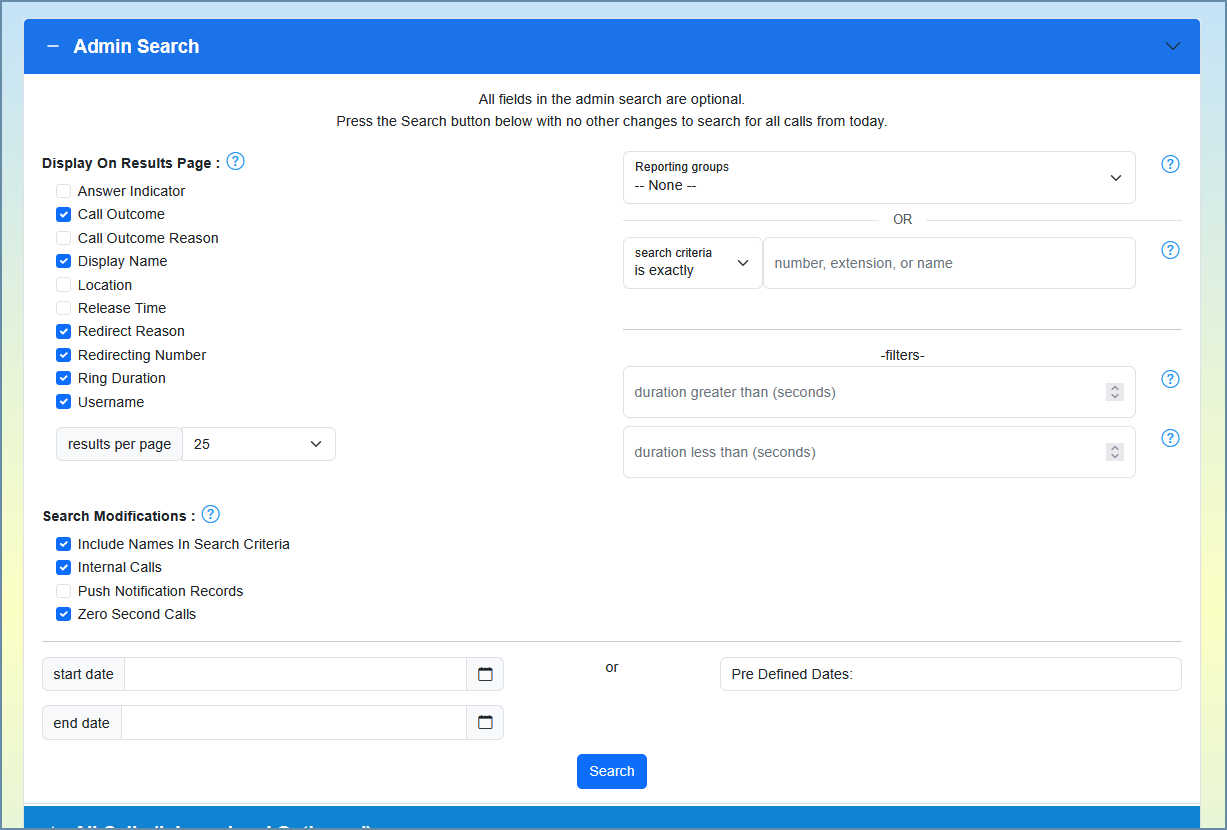
Every field on the Admin Search is optional — leave a field blank and it simply isn’t used to narrow the results.
Choosing what to search for
There are two ways to tell the Admin Search who or what you’re looking for. They are mutually exclusive — using one disables the other.
Option 1 — Number, Extension or Name (with Search Criteria)
Type a number, extension, or name into the search field, then choose how it should be matched using the Search Criteria dropdown:
| Search Criteria | What it returns | Example: searching 911 |
|---|---|---|
| Contains | The value appears anywhere in the number | 911, 9911, 12349110 |
| Begins With | The number starts with the value | 911, 9115551212 |
| Ends With | The number ends with the value | 911, 5551911 |
| Is Exactly (default) | The number matches exactly | 911 only |
Important: The field defaults to Is Exactly. If you want the older “find this string anywhere” behavior, switch the dropdown to Contains before searching.
Leave the field blank to search all calls in the selected timeframe.
Option 2 — Reporting Groups
If you’ve set up Reporting Groups, you can pick one from the dropdown instead of typing a number. A Reporting Group is a saved set of extensions or numbers (for example, a department), and the search returns an exact match against every member of that group.
Selecting a group disables the free-text number field (and vice-versa) — you use one or the other, not both. Learn more in the Reporting Groups article.
Choosing which columns to display
The Display on Results Page checkboxes control which optional columns appear in your results. These add or remove columns — they do not filter the data. Toggle on only what you need to keep the report readable:
- Answer Indicator — whether the call was answered
- Call Outcome — success or failure, as defined by Webex (on by default)
- Call Outcome Reason — the reason behind the outcome
- Display Name — the end user’s name (PRO; on by default)
- Location — the Webex location associated with the call
- Release Time — when the call was released/ended
- Redirect Reason — why the call was redirected (on by default)
- Redirecting Number — the number that redirected the call (on by default)
- Ring Duration — how long the call rang before being answered (on by default)
- Username — the user associated with the call (on by default)
You can also set Results per page here (25, 50, 100, 250, or 500).
Search Modifications
These options change which calls are included in the results:
- Include Names — show end-user names rather than just numbers (PRO)
- Internal Calls — include calls between two internal parties (PRO)
- Show Push Notifications — include push-notification legs
- 0-Second Calls — include calls with a duration of zero seconds (on by default)
Search Filters
Narrow results further with:
- Duration greater than — only calls longer than this many seconds
- Duration less than — only calls shorter than this many seconds
Combine the two to target a duration range (for example, calls between 5 and 30 seconds).
Setting the timeframe
You can specify the period in either of two ways:
- Start Date / End Date — use the calendar pickers to choose an exact date-and-time range, or
- Predefined date — pick a ready-made range (e.g. Today, Yesterday, Last 7 Days) from the dropdown.
If you don’t set a timeframe, the report defaults to today.
Understanding your results
When results load, the top of the page shows a call-volume and average-duration chart for the period you searched. For ranges of a day or less the chart is broken down by hour; for longer ranges it’s broken down by day. You can collapse the chart if you’d rather focus on the table. An average call duration figure is shown alongside it.
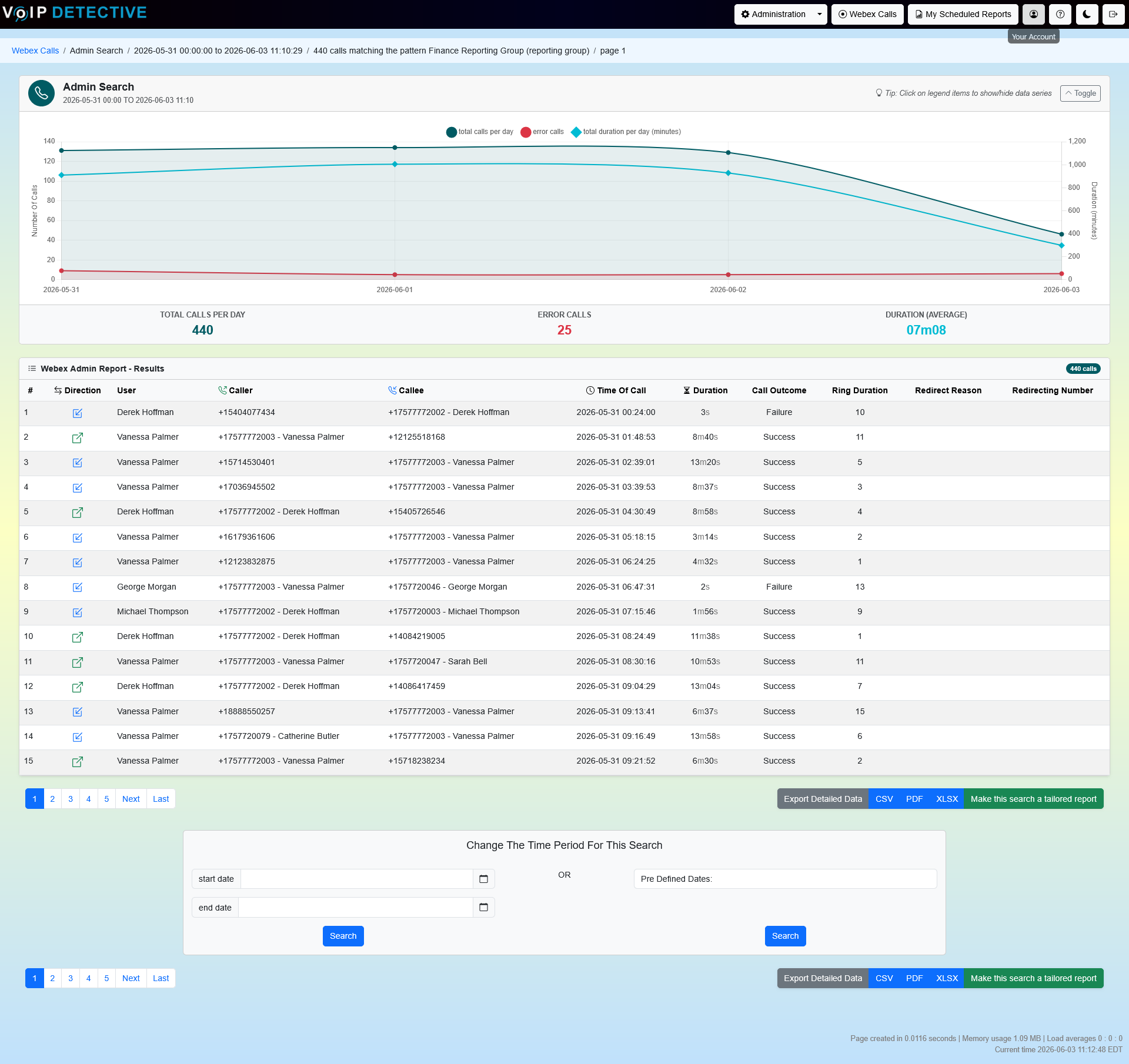
The results table can include the following columns (depending on which you’ve enabled above):
- # — the row number within your results. A small icon here indicates the call type: outbound, inbound, or push notification. Hover the icon for detail.
- Direction — whether the call was inbound or outbound
- User — the user’s name, as configured in Webex
- Caller — the number or extension that placed the call
- Callee — the number or extension that received the call
- Time of Call — the date and time of the call
- Duration — the total length of the call
- Answer Indicator — whether the call was answered
- Call Outcome — success or failure of the call, as defined by Webex
- Call Outcome Reason — the reason behind the outcome
- Location — the Webex location for the call
- Release Time — when the call ended
- Ring Duration — how many seconds the call rang before being answered
- Redirect Reason — the Webex reason code for a redirected call
- Redirecting Number — the number that redirected the call
Send this report to your inbox
To receive this exact search on a recurring schedule, click the green “Make this search a tailored report” button. You can also export the on-screen results directly using the export buttons above and below the results table.
Was this article helpful?
That’s Great!
Thank you for your feedback
Sorry! We couldn't be helpful
Thank you for your feedback
Feedback sent
We appreciate your effort and will try to fix the article