The All Calls search shows both inbound and outbound calls for a specific Microsoft Teams user. It is the primary search tool for most VoIP Detective users, providing a clear view of a person's call activity including answered calls, unanswered calls, and voicemail.
Unlike the Admin Search, which gives administrators unrestricted access to all records, the All Calls search enforces access controls based on your role. A search target is always required.
Tip: You can hover over most items in VoIP Detective for a description tooltip.
Who Can Use This Search
Access to the All Calls search depends on your user role:
- Standard Users — can only search for their own calls. The search field is pre-populated with your own account and cannot be changed.
- Managers — can search for calls belonging to any team member assigned to them by an administrator, as well as their own calls. Team members appear in a dropdown list.
- Administrators — can search for any user by entering a name, phone number, or Microsoft Teams user ID into a free-text search field, with full match type controls.
If you attempt to search for a user you are not authorized to view, VoIP Detective will display an authorization error and the attempt will be logged.
Search Form
A search target is always required for the All Calls search. Depending on your role, you will either type in a search term or select a user from a dropdown.
Search Field and Match Type (Administrators Only)
Administrators see a free-text search field with a match type dropdown. The search field accepts names, phone numbers, or Microsoft Teams user IDs. The match type controls how the search term is matched:
- Contains — matches any record where the search term appears anywhere in the field
- Begins With — matches records where the field starts with your search term
- Ends With — matches records where the field ends with your search term
- Is Exactly — matches only records where the field is an exact match (this is the default)
Date Range
Use the Start Date and End Date pickers to define the time range for your search, or choose from the predefined date range dropdown (e.g., last 7 days, last 30 days, this month). If no dates are specified, the search defaults to today (midnight to now). Dates are interpreted using your configured timezone.
Note: VoIP Detective Free limits searches to the last 7 days.
Duration Filters
You can filter results by call duration (in seconds):
- Duration Greater Than — only returns calls longer than the specified number of seconds
- Duration Less Than — only returns calls shorter than the specified number of seconds
These can be combined. For example, setting “greater than 60” and “less than 300” returns calls between one and five minutes.
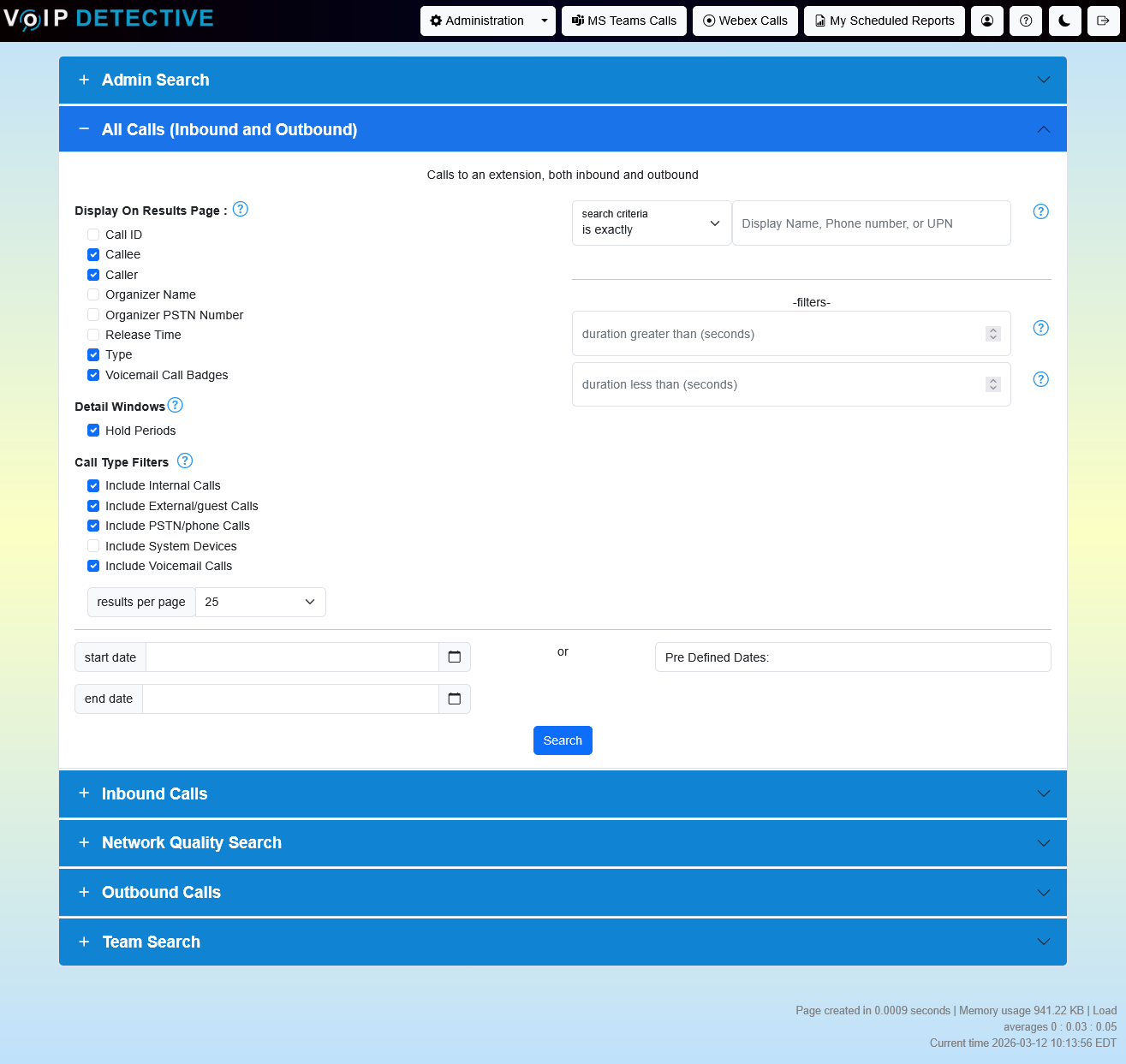
Results Per Page
Choose how many results to display per page: 25, 50, 100, 250, or 500.
Display Options
The left side of the search form contains checkboxes that control which columns and details appear in your search results.
Result Columns
| Option | Description | Default |
|---|---|---|
| Call ID | The unique identifier assigned by Microsoft Teams to the call. Displayed as a clickable link that opens the full call detail page. | Off |
| Callee | The display name (or PSTN number if no display name exists) of the person receiving the call | On |
| Caller | The display name (or PSTN number if no display name exists) of the person making the call | On |
| Organizer Name | The display name of the call organizer in Microsoft Teams | Off |
| Organizer PSTN Number | The PSTN phone number of the call organizer | Off |
| Release Time | The timestamp when the call ended | Off |
| Type | The call type — peerToPeer (one-to-one call) or groupCall (three or more parties) | On |
| Show Voicemail Indicator | Displays a voicemail badge in the status column for calls that went to voicemail | On |
The following columns always appear and cannot be toggled off: row number (#), time of call, duration, status, and the details expand button.
Expandable Details
Under the “Details” heading on the search form, you can enable additional information that appears in the expandable detail panel for each call:
| Option | Description | Default |
|---|---|---|
| Hold Periods | Shows hold time information for peer-to-peer calls, including a visual timeline | On |
Participants are always available in the expandable details section regardless of this setting.
Call Type Filters
These checkboxes filter which types of calls are included in your results:
| Filter | Description | Default |
|---|---|---|
| Include Internal Calls | Calls between users within your organization | On |
| Include External Calls | Calls involving participants outside your organization | On |
| Include PSTN Calls | Calls to or from the public telephone network | On |
| Include System Devices | Include system-generated endpoints in participant lists | Off |
| Include Voicemail Calls | Include calls that went to voicemail | On |
Quality Highlighting
Poor quality calls are highlighted automatically. Calls with poor network metrics are highlighted in red, while calls with fair quality are highlighted in yellow. This is controlled by the “Highlight Poor Quality” setting, which is enabled by default.
Search Results
Results Overview
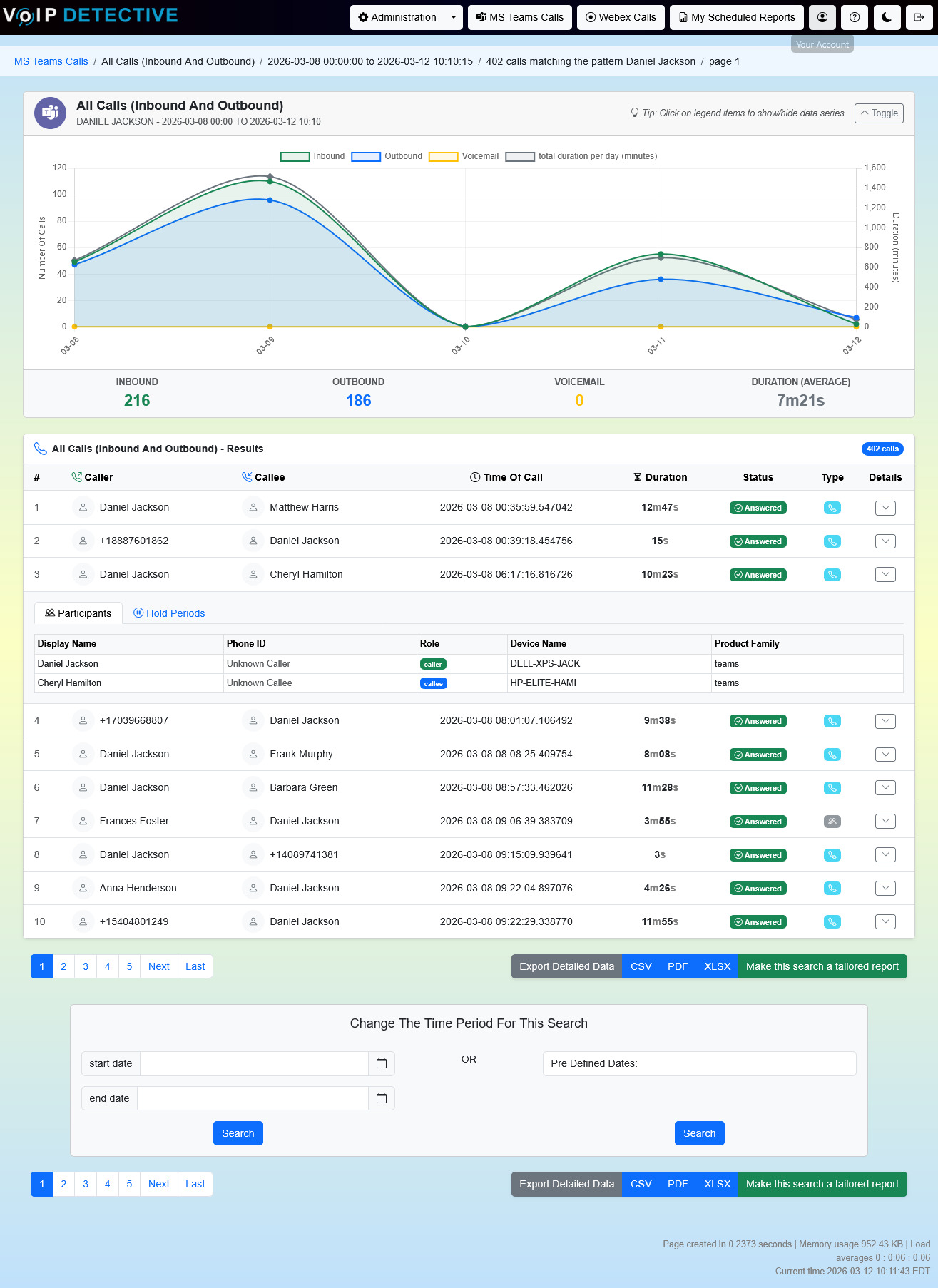
After running a search, a breadcrumb bar at the top displays your search parameters: the search type, date range, number of matching calls, and current page number.
If the search returns more than 2,000,000 records, a warning will appear indicating that the result limit has been reached and some records may not be displayed.
Status Column
Each call in the results table displays a status badge indicating the call outcome:
- Answered (green) — the call was connected and has a duration greater than zero
- Unanswered (red) — the call was not answered (duration is zero)
- Voicemail (yellow) — the call was routed to voicemail
Rows are also color-coded to match: voicemail calls have a yellow background, unanswered calls have a red background, and answered calls have a white background. These colors may be overridden by the quality highlighting feature if enabled.
Call Volume Chart
On the first page of results, a collapsible chart appears at the top showing call activity over time. This chart displays four data series:
- Inbound — plotted on the left axis in green, showing incoming call volume
- Outbound — plotted on the left axis in blue, showing outgoing call volume
- Voicemail — plotted on the left axis in yellow, showing calls that went to voicemail
- Total Duration (minutes) — plotted on the right axis in gray, showing aggregate call duration
Below the chart, summary statistics are displayed: total inbound calls, total outbound calls, total voicemail calls, and average call duration.
Tip: Click on items in the chart legend to show or hide individual data series.
Expandable Call Details
Each row in the results table has a details button (chevron icon) on the right side. Clicking it expands a panel with tabbed sections.
Participants Tab
Shows every endpoint associated with the call, including:
- Display Name
- Phone ID
- Role (Caller, Callee, or System Device)
- Device Name
- Product Family
System devices can be hidden using the “Include System Devices” checkbox on the search form.
Hold Periods Tab
Available only for peer-to-peer calls. This tab displays:
- A list of hold events with their start times and durations
- A total hold time summary
- A visual timeline chart showing talk segments (green) and hold periods (orange) across the life of the call
If no hold events occurred during the call, the tab will display a confirmation that no hold periods were detected.
Exporting Results
An export button appears at both the top and bottom of the search results. You can download the results as a CSV, PDF, or XLSX file.
The export respects whatever display columns you selected on the search form, so your exported file will match what you see on screen.
Tailored Reports
You can save your current search parameters (including column selections and filters) as a Tailored Report for repeated use. This is useful for recurring reporting needs where you want the same column layout and filter configuration each time.
All Calls vs. Admin Search
If you have administrator access, you may be wondering which search to use. Here is a quick comparison:
| Feature | All Calls | Admin Search |
|---|---|---|
| Search target required | Yes | No (blank searches all calls) |
| Available to non-admin users | Yes | No |
| Chart breakdown | Inbound / Outbound / Voicemail | Total Calls / Error Calls / Duration |
| Status badges | Answered / Unanswered / Voicemail | External / PSTN / Voicemail |
| PSTN Calling Plan details | No | Yes (charges, phone numbers, destination) |
| Direct Routing details | No | Yes (SBC, SIP codes, media path) |
| Network quality metrics | No | Yes (jitter, packet loss, round trip time) |
| Media streams | No | Yes |
| Hold periods | Yes | Yes |
| Participants | Yes | Yes |
| Call ID links to detail page | Yes | No (copy to clipboard) |
Use the All Calls search when you want to review a specific person's call history with inbound/outbound breakdown. Use the Admin Search when you need to troubleshoot call issues, search across all users, or access detailed network quality and PSTN/Direct Routing billing data.
Was this article helpful?
That’s Great!
Thank you for your feedback
Sorry! We couldn't be helpful
Thank you for your feedback
Feedback sent
We appreciate your effort and will try to fix the article